LibreOffice Calc vs Excel: formulas, macros and file compatibility
Calc opens XLSX, but a replacement must keep the workbook's next calculation, refresh and handoff working. Choose from those dependencies and preserve the original while checking a return copy.

LibreOffice Calc is a sensible Excel replacement for a self-contained workbook whose formulas and return copy check out. Keep Excel available when the job depends on VBA, Power Query, a Data Model or an exact Excel handoff. Calc opens and saves Excel XLSX files, but that capability is only the start of a workbook check.
A household budget you maintain yourself is a different decision from a monthly report that must refresh external data and return to an Excel user. Keep the original workbook while you assess a separate copy. A file that opens and displays yesterday's totals has cleared only the first hurdle.
Choose from the work your workbook must keep doing
I would consider Calc for a self-contained spreadsheet: entered data, calculations you can inspect, ordinary charts and a clearly agreed return format. LibreOffice supplies its desktop office tools at no cost, so a suitable workbook can move without a software subscription becoming part of that task.
I would keep Excel available when a workbook depends on VBA, Power Query, a Data Model or a recipient's exact Excel editing process. The cost of rebuilding that dependency belongs in the decision. Being able to read its current cells does not establish that the next monthly refresh will work.
Start by listing the actions between opening the file and sending it. Include edits such as entering a few figures or adding rows to a report. Record any macro or query refresh the task needs. If you change a pivot filter or print a particular page, include that action too. Those actions give you a useful acceptance checklist. A comparison of total function counts does not.
Opening an XLSX file does not settle formula accuracy
Two published projects run by spreadsheet-engine vendors show why a workbook check matters. Witan Labs' June 11, 2026 benchmark used LibreOffice 26.2.4.2 on macOS and compared recalculated formula cells with Excel results. Witan reports rounded opening rates of 100.0% for both comparison sets, yet formula agreement was lower:
| Witan corpus | Formula cells compared | Calc results matching Excel |
|---|---|---|
| FUSE web workbooks | 5,671,240 | 98.9% |
| SpreadsheetBench forum workbooks | 1,168,856 | 96.7% |
The unweighted mean of those two corpus rates is 97.8%, with a 96.7% to 98.9% range: two corpora from one project. This gives each corpus equal weight. Witan's comparator allows a small numeric tolerance and excludes directly volatile formulas; its published limitations also identify imperfect Excel reference results. Those conditions matter when reading the percentages.
A separate BetterOffice benchmark reports 85.87% formula-result accuracy for LibreOffice 26.2.3.2. Its calculation method clears cached results and scores recomputed cells against Excel references. The project uses different files, a different Calc release and different comparison rules, so I would keep its result separate from Witan's average.
These figures describe formula-result agreement for the specified files and releases. Layout, macros and refresh behavior still need their own checks. My practical conclusion is to preserve the original and inspect representative calculations in a return copy, even when every sheet opens cleanly.
Formula punctuation is adjustable
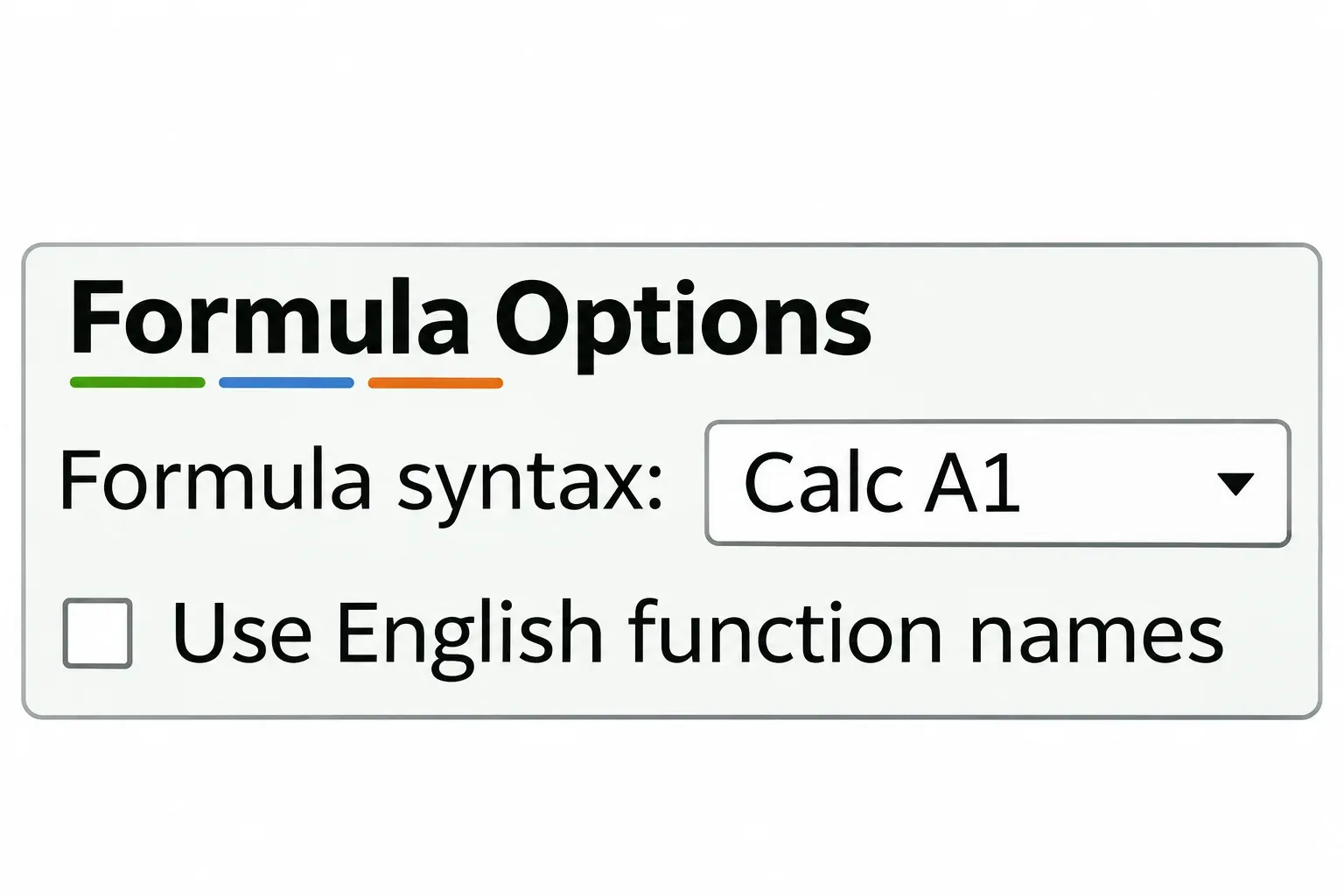
In Calc's default A1 syntax, a reference to C4 on another sheet can appear as =$Sheet2.C4. Excel A1 uses =Sheet2!C4. Calc also offers Excel A1 and Excel R1C1 syntax choices. The Formula options describe these reference styles and configurable separators.
For example, the documented semicolon form =SUM(A1;B1;C1) can be changed to use commas: =SUM(A1,B1,C1). Do not rewrite every formula in an imported file merely because its punctuation looks unfamiliar.
With a spreadsheet open, use Tools > Options > LibreOffice Calc > Formula on Windows or Linux. On macOS, begin at LibreOffice > Preferences, then select LibreOffice Calc > Formula. Check Formula syntax and Separators before pasting a formula from an Excel tutorial.
Function names can also follow the interface language. The Use English function names option changes formula input and display as well as the Function Wizard and tips. If a copied example fails, establish the expected name and separators first.
Check the function's behavior and the installed release
Old comparisons can mislead here. Calc has supported XLOOKUP since LibreOffice 24.8, and its FILTER function is also available from 24.8. An older installed copy may have a different set of functions.
Availability is only one check. Calc's XLOOKUP documentation says that a result containing a range of cells requires array-formula entry. It also documents a regular-expression match mode, 3. Microsoft's XLOOKUP reference lists different matching choices and explicitly says the function is unavailable in Excel 2016 and 2019. Check both ends of the exchange before depending on a newer function.
For a lookup-heavy workbook, inspect exact and approximate matches, missing values and returned ranges. A visible result in one cell does not establish that every branch of the formula behaves as intended.
Even familiar calculations deserve attention. LibreOffice's conversion guide documents a Boolean-value difference: with TRUE in A1 and A2, =A1+A2 gives 2 in both applications, while summing those cell references gives 2 in Calc and 0 in Excel in its example. The point is the treatment of referenced logical values. Matching a function name is insufficient evidence of identical results.
For your own copy, select representative totals and the formulas that feed them. Include blank inputs, text that resembles a number, dates, missing lookup values and any array results your workbook uses. Compare against values you understand, rather than accepting an error-free-looking sheet as proof of correct calculations.
Pivots, charts and conditional formatting are present
Calc provides these tools. The useful distinction is between building a report in Calc and preserving an existing Excel report through another save.
| Workbook feature | Calc capability | What to inspect in your copy |
|---|---|---|
| Pivot tables | Interactive pivot tables rearrange and summarize source data. | Source rows, filters, grouping and totals after the changes your report needs. |
| Charts | Charts can use Calc cell ranges and expose editable axes, titles and series. | The intended series, labels, scale and layout in the return file. |
| Conditional formatting | Conditional formatting rules include color scales, data bars and icon sets alongside value and formula conditions. | The affected range, rule order and response when a relevant value changes. |
LibreOffice explicitly lists pivot tables, newer chart types, conditional formatting and some formulas among possible Excel conversion challenges. Treat a feature's presence as a starting point for inspection. It does not guarantee that an imported report remains equivalent.
Conditional formatting also needs AutoCalculate enabled, through Data > Calculate > AutoCalculate in Calc. Check that prerequisite before assuming an unchanged color means a rule was lost. For a report you send for printing, inspect the page layout as well as the cells; a correct total on a clipped page still leaves the recipient with work to do.
VBA and Power Query can determine the decision
Preserving macro code is separate from running it
LibreOffice explains that Office and LibreOffice macro objects and methods differ. Some Excel VBA scripts can run with compatibility support, but this is a limited route. A macro-dependent workbook needs a deliberate conversion decision.
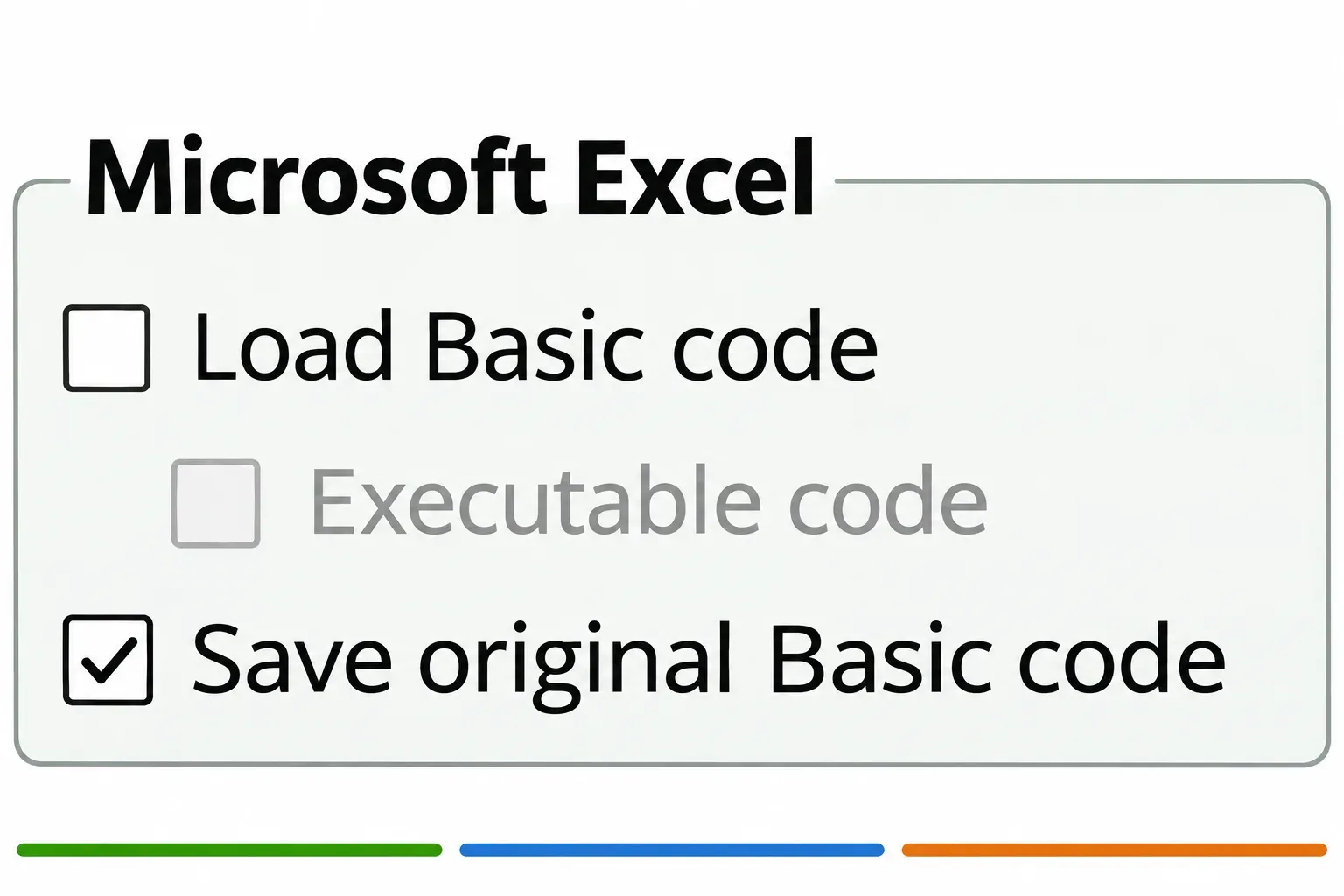
The VBA Properties settings distinguish executable code from saving original code. Keeping original VBA for an Excel return file does not prove that Calc can execute it correctly. Saving to another format can also omit the original Microsoft Basic code. Preserve the untouched macro-enabled original before any format change, and keep unfamiliar macros disabled.
If the only acceptable outcome is the existing automation running unchanged, keep the Excel workflow available. If rewriting is acceptable, scope that work separately.
A pivot table does not establish query compatibility
Power Query handles a workbook's data-acquisition and transformation process. Microsoft's Power Query availability guide places Get & Transform in Excel for Windows 2016 and later and Microsoft 365, with features varying by version. It describes the Mac experience for Microsoft 365 subscribers and different supported sources. Even within Excel, the platform matters.
For an existing query-driven report, write down its data source, transformation steps, credentials and required refresh behavior. Treat replacing that process with Calc-based work as a separate migration to establish, rather than assuming an imported sheet refreshes its Excel queries. Cached output may be sufficient for reading a report; it is insufficient for producing the next one.
Switching to a browser is also a separate choice. Microsoft currently says Excel for the web cannot refresh queries loaded to the Data Model. Check the exact application and data route that will perform the next refresh before giving up the working setup.
Use a return-copy check before you switch
Choose a representative real workbook, including its difficult parts. A new blank spreadsheet will tell you little about a file with years of formulas and report formatting.

- Preserve the original. Make a separate assessment copy. Record the Calc release, the recipient's Excel version and the file type they expect back. Keep macro-enabled originals and source data available.
- Inspect the workbook in Calc. Check the formulas, representative results, chart sources, pivot summaries and formatting that matter to its purpose. Keep unfamiliar macros disabled. Note any missing feature before editing further.
- Make a controlled change in the copy. Use an input whose consequence you understand. Check the dependent result, affected rule and report output. If the task requires external refresh or automation, establish that route separately; unchanged cached cells do not answer it.
- Save a separate return file. Calc's documented route is File > Save As, then the required Microsoft Office file type. Use XLSX for an ordinary XLSX exchange, keeping any macro-preservation decision separate. Do not overwrite the original while assessing a conversion.
- Inspect that file in the recipient's editor. Ask the recipient to open the return copy and check the calculations, editing actions and layout they rely on. If it must come back again, inspect the edited return in Calc too.
Stop the switch when a required calculation, refresh, macro or return-file edit remains uncertain. You can still use Calc for other workbooks while retaining Excel for that dependency.