How to turn on dark mode in LibreOffice and change its theme and icons
Choose the working view you need: dark surroundings, an optional white page, and icons you can read. The steps distinguish 26.8 Appearance from older controls.
To turn on LibreOffice dark mode, open Tools > Options > LibreOffice > Appearance on Windows or Linux, or LibreOffice > Preferences > LibreOffice > Appearance on a Mac. Choose Dark under LibreOffice Themes. If you want dark menus around a white page, also select Use white document background.
Those labels follow the LibreOffice 26.8 Appearance controls. Older instructions may send you to View or Application Colors instead. Start with the route that matches your installed version; changing the document's formatting should not be your first response to an uncomfortable editing view.
Choose the dark interface first
Open Writer with a document you can use to inspect the change. You do not need to select its text. The setting is in the general LibreOffice section, rather than the document-specific LibreOffice Writer section.
- On Windows or Linux, choose Tools > Options. On macOS, choose LibreOffice > Preferences. Select LibreOffice > Appearance.
- If you use the tabbed interface, the Tools tab has an Options button. Open it and select the same LibreOffice > Appearance page.
- In LibreOffice Themes, choose Dark. Use Light when you want light colors regardless of the desktop's theme.
- Choose Apply to inspect the change while keeping the dialog open, or OK to save and close it. These are the documented Options confirmation buttons.
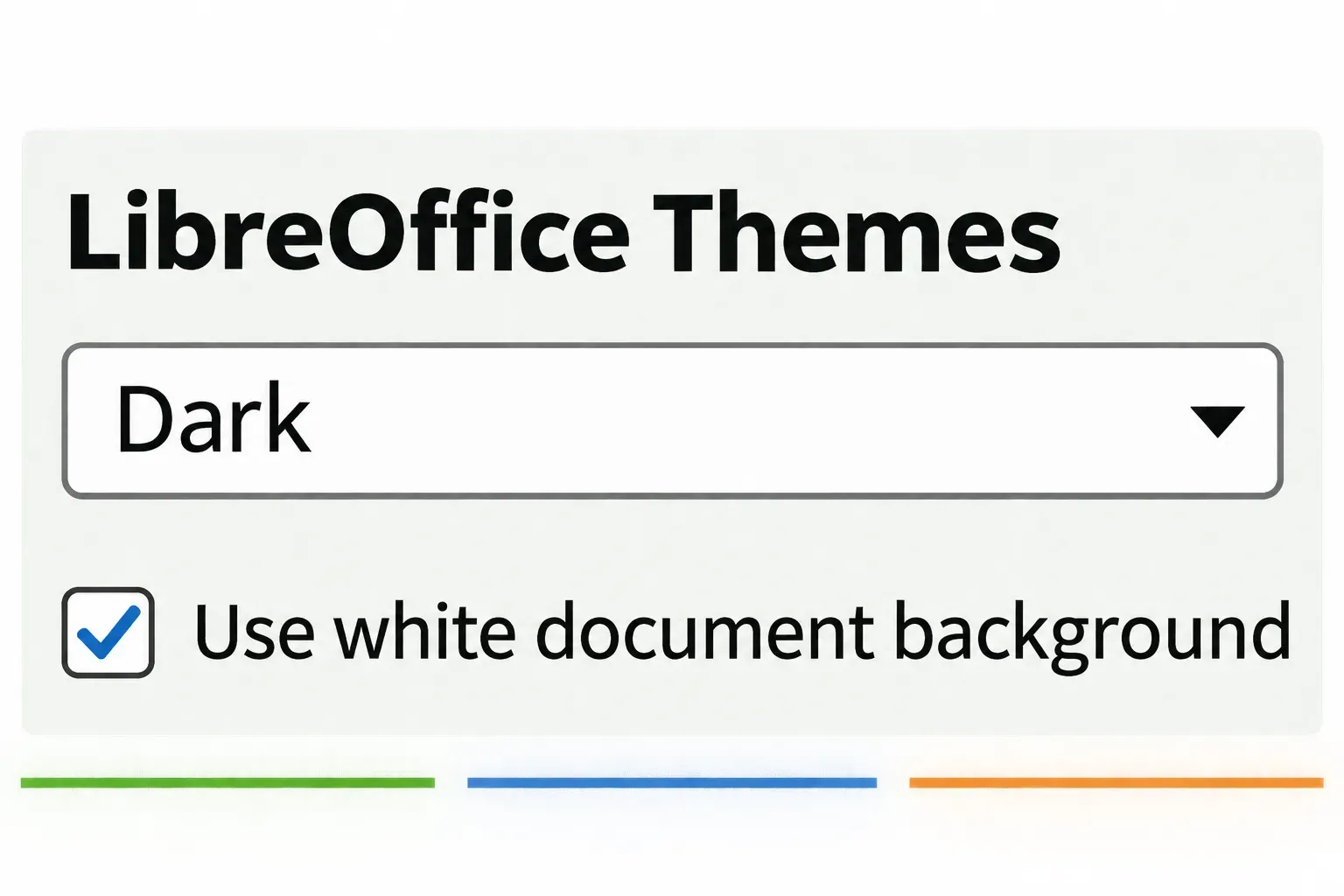
Automatic is a different decision: the application and document appearance follow the desktop environment's light or dark theme. Choose it if you want LibreOffice to follow your desktop. Choose Dark if you want to make that choice in LibreOffice itself.
Look at both the surrounding controls and the page after applying the setting. A dark frame with a white page may be exactly the result you want. There is no need to make every surface black.
Keep the page white, if that is what you need
For a letter or report, I would start with a white page inside the dark interface. It keeps the page visually distinct from the surrounding workspace while you arrange headings, tables and page breaks.
Return to Appearance using Tools > Options on Windows/Linux or LibreOffice > Preferences on macOS. Leave Dark selected, enable Use white document background, then choose Apply or OK. That option overrides the theme's document background with white. To let the selected theme supply that background again, clear the option and apply the change.
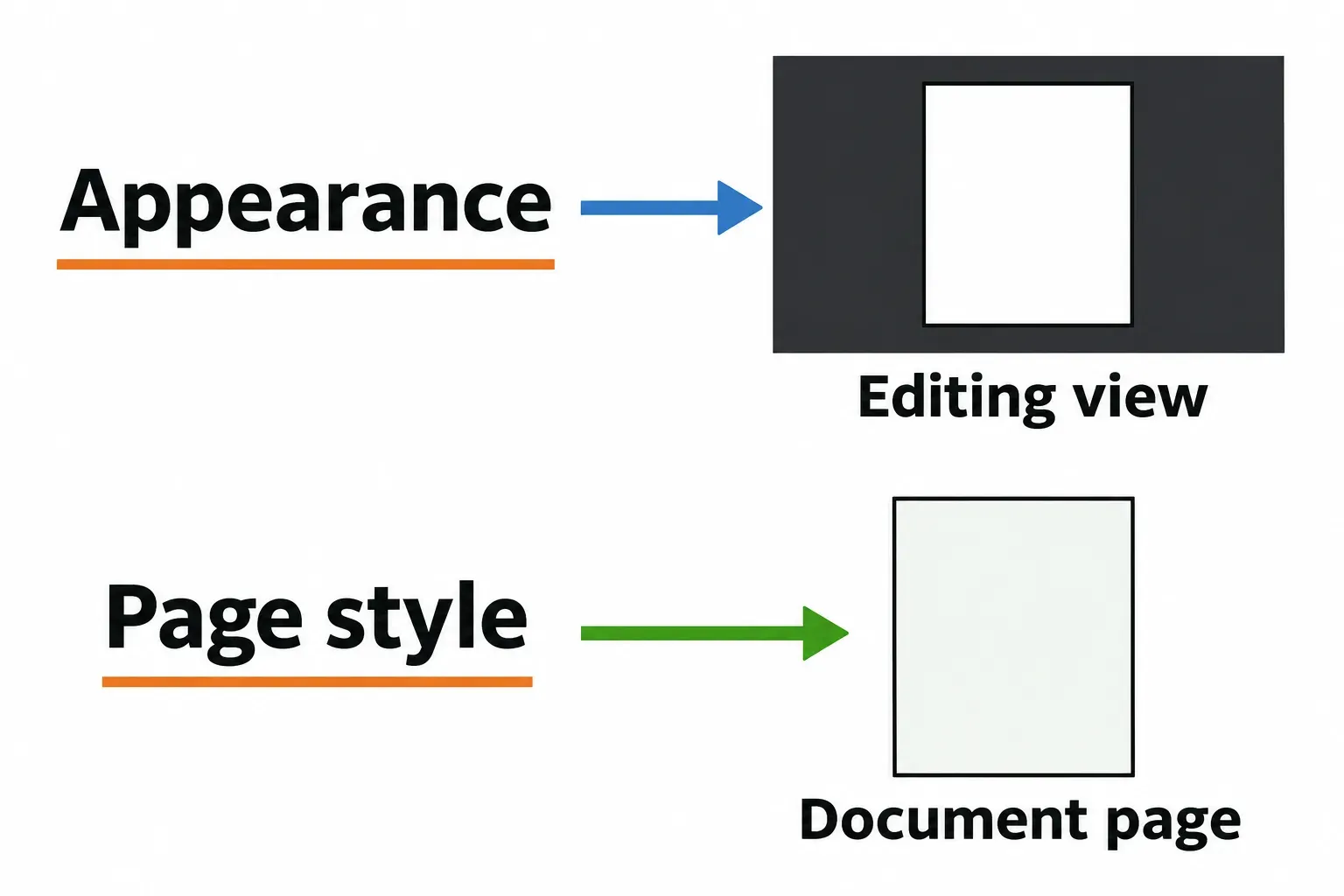
Keep this separate from the document you will send. Writer uses page styles to specify actual page backgrounds. Do not change a report's page style or recolor all its text merely to repair your editing view. Check the document's own formatting, and inspect the PDF or print preview before sending it.
The word “theme” can also mean a presentation design. Keep that decision separate: the Appearance settings here concern the application's working environment.
Choose readable icons and their size
If the toolbar symbols are hard to distinguish after changing the background, adjust the icons before changing document colors. In the same Appearance page, find Icons and choose from the installed choices under Icon themes. Apply it, then inspect familiar controls such as Save and formatting buttons for contrast.
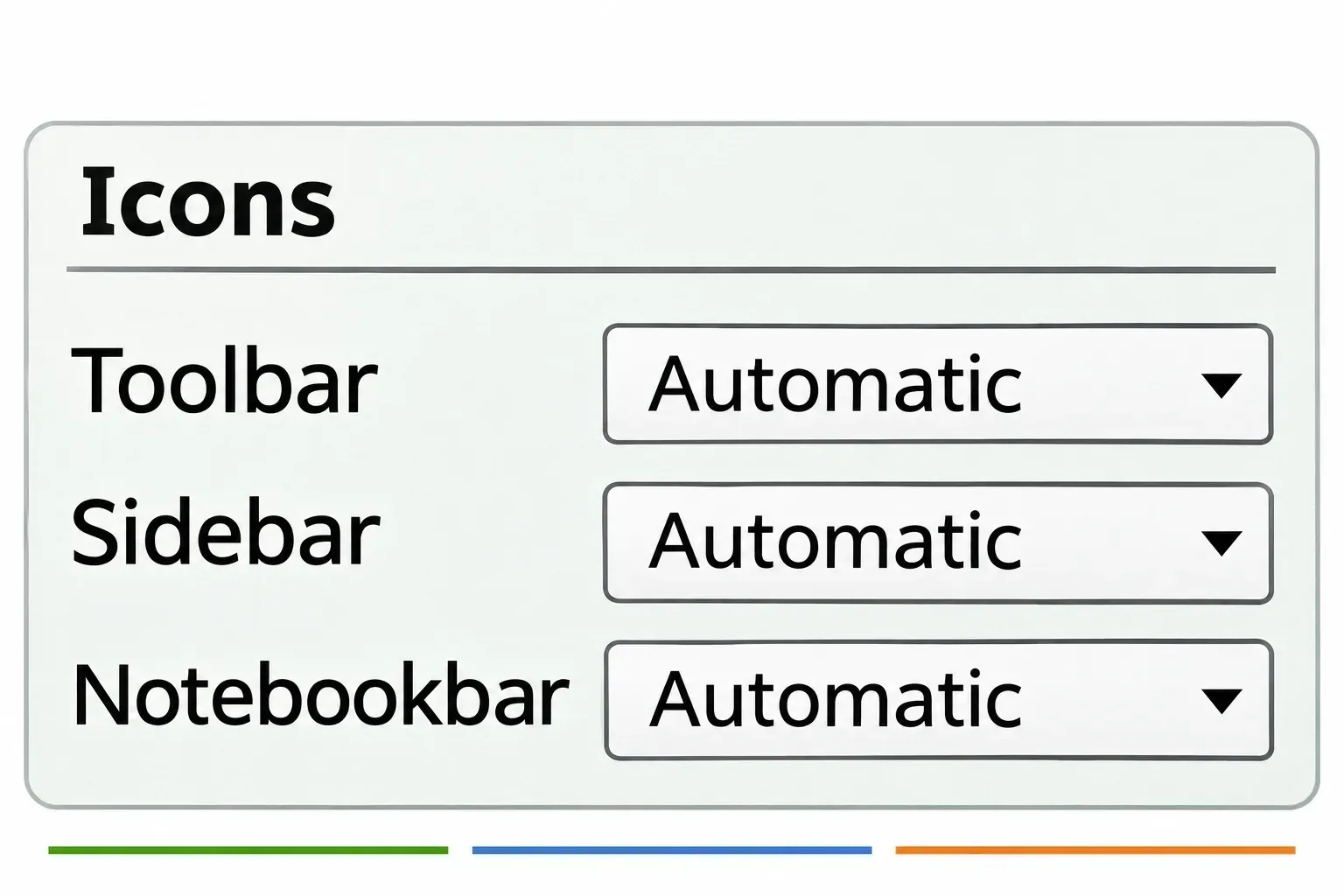
The icon settings also separate Toolbar, Sidebar and Notebookbar sizes. Increase the size for the area you use, apply it and check that its symbols are comfortable to identify. A size change in one area is not a reason to change every other area.
Use Tools > Options > LibreOffice > Appearance on Windows/Linux, or LibreOffice > Preferences > LibreOffice > Appearance on macOS, for both choices. Choose from what your installation offers rather than hunting for an icon-pack name from someone else's desktop.
When a custom theme is worth adding
Try the built-in Light or Dark choice first. If neither gives you the appearance you need, the themes list can also use a custom theme's settings.
In Appearance, Add more themes and Add more icons lead to extension assets. The Help describes Enable application theming for extension themes and the Extension manager for removing a custom theme. Treat these as optional additions to the appearance controls, rather than prerequisites for selecting Dark.
When your controls or colors do not match
Your dialog has Application Colors and View
Do not assume the current labels must exist in every older copy. For example, the archived 7.6 Help puts color schemes in Application Colors, while its View page contains Icon Theme and Icon Size.
For that documented version, start at Tools > Options > LibreOffice on Windows/Linux or LibreOffice > Preferences > LibreOffice on macOS, then choose the relevant page. These are 7.6 references, not a claim that all older releases have identical controls. Use the Help supplied for your build if neither route matches. If you decide to update LibreOffice, first identify who supplies your installed package.
The text and its background are difficult to distinguish
On the 26.8 Appearance page, first try Light and apply it. This gives you a clear choice to inspect without depending on the desktop's Automatic setting. If you prefer Dark, reselect it and try the white-document option before changing the document itself.
If you previously customized appearance colors, Customizations > Items and Color are the controls to revisit. Be careful with Reset All: the Help says it resets color customizations to the Automatic theme. It is broader than undoing one color. For a single choice, change that choice back instead.
Work from the symptom you can see: page background, surrounding interface or icons. Change one of those at a time and inspect the result.