How to install LibreOffice on Linux: distro packages or the official .deb and .rpm
Find the version and package source you already have. Then choose the distro build, a TDF archive or an identified universal package, with one clear route for future updates.
For a normal Linux desktop, I would start with LibreOffice from your distribution's package manager. LibreOffice's own Linux installation advice recommends the distro route because it integrates with the system. Choose the official DEB or RPM archive when you need a particular upstream build and are prepared to manage that installation. Flatpak and Snap are further choices with their own package sources and update paths.
Start by finding out what is already installed. Installing another copy before identifying the first can leave you opening the wrong version from a familiar-looking launcher.
Record the version and where it came from
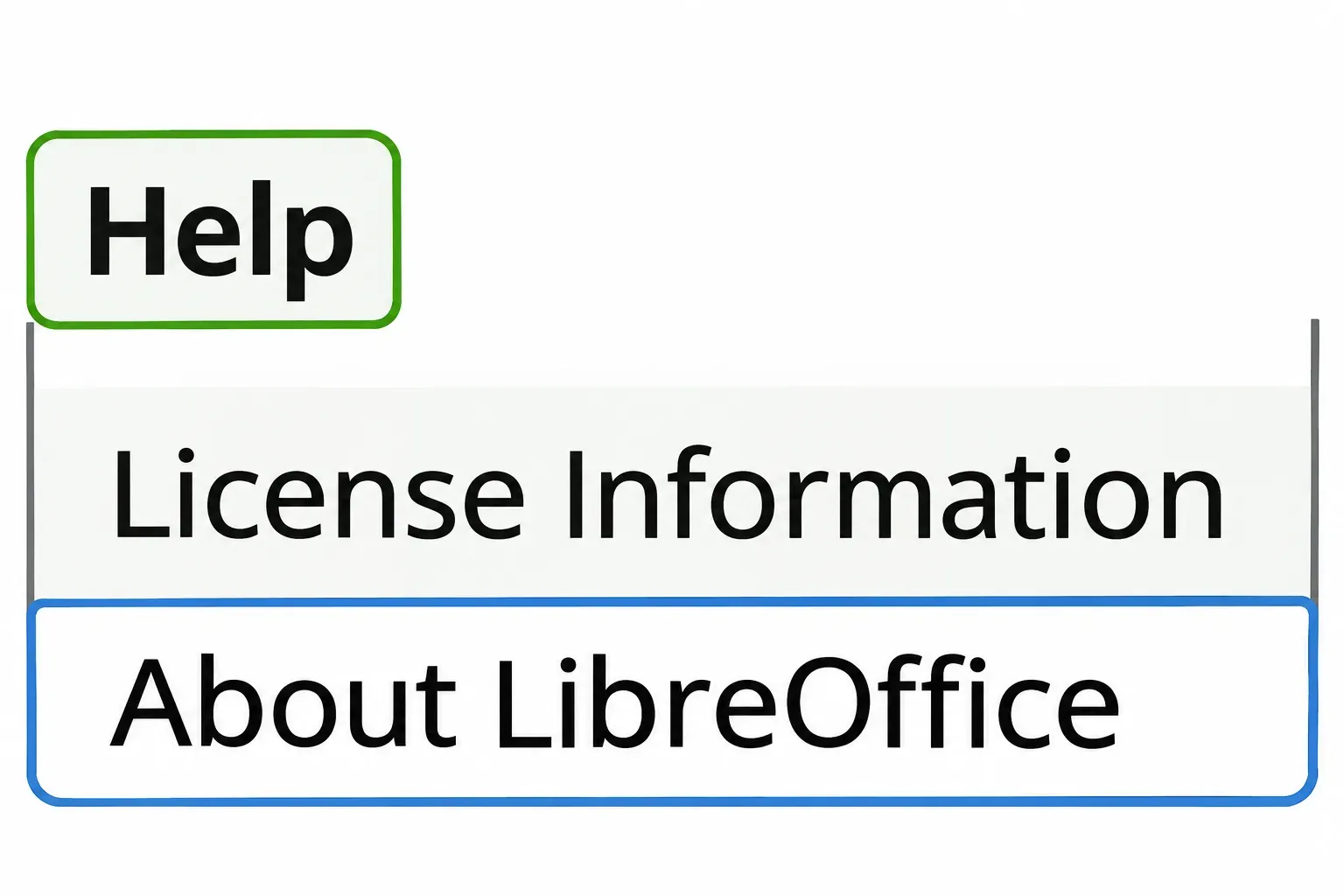
If LibreOffice opens, select Help > About LibreOffice. The About entry displays the version number. Record it, then inspect the application's package source in your software manager. The version alone does not identify whether it came from your distro, a downloaded archive or an app store.
- Native packages: inspect the distro's installed-package list for LibreOffice components. On Debian or Ubuntu,
apt list --installed 'libreoffice*'uses APT's documented installed-package filter and name patterns. Names from a TDF archive can differ from distro package names, so retain the actual list. - Flatpak:
flatpak list --applists installed applications. The Flatpak command guide distinguishes applications, remotes and installation scopes; look fororg.libreoffice.LibreOfficeand its source. A per-user installation and a system installation are separate scopes. - Snap:
snap listshows installed snaps. Canonical's Snap guide explains the version, tracking and publisher columns. Look forlibreoffice.
For a previously downloaded native archive, compare the installed packages with the package set in its retained DEBS or RPMS directory before selecting removals. Treat a filtered name search as a starting point for that inventory.
If there is no installed copy, choose a route below. If you are changing sources, read the removal section before installing. Save your documents and back up your system and data first; the LibreOffice installation readme recommends that precaution. On a managed computer, use the route permitted by its administrator.
Use your distro's packages as the default
Use only the subsection for your system. Read the proposed package transaction before confirming it.
These are routes for conventional package-managed systems. If your distribution uses an atomic or immutable system image, follow that edition's application-installation instructions rather than applying a host-package command from a different edition.
Debian and Ubuntu
Debian tracks LibreOffice as a suite metapackage, and Ubuntu's LibreOffice metapackage pulls in the suite's components. A metapackage collects dependencies; it is not a single self-contained application file.
Following the APT package-index and installation procedure, first refresh your configured repositories with sudo apt update, then install with sudo apt install libreoffice. Use the repositories for your supported distro release. Do not download another Ubuntu release's packages just to obtain a higher version number.
The result is the LibreOffice build offered by those repositories. Its version can differ from the TDF download.
Fedora with DNF5
Fedora's LibreOffice package page lists builds by Fedora release. On a Fedora installation managed with DNF5, use sudo dnf5 install libreoffice. The DNF5 install command resolves the selected packages and dependencies.
Check that the transaction is using the Fedora repositories you intend. This subsection does not prescribe package layering for a Fedora Atomic desktop.
Arch Linux
The ArchWiki offers libreoffice-fresh and libreoffice-still. Choose one: fresh follows the feature branch; still is the maintenance branch for a more conservative choice. Add the matching language package if you need a different interface language.
The example sudo pacman -Syu libreoffice-fresh refreshes package lists and upgrades the Arch system as well as installing the selected package. Review that wider upgrade before confirming. These effects are documented in the pacman command reference. To choose still, substitute libreoffice-still; these instructions concern Arch Linux's own packages.
openSUSE managed with Zypper
First run zypper search libreoffice to inspect the packages in your enabled repositories. The Zypper guide documents package searches and installation by exact name. Select the LibreOffice suite package appropriate to your release.
Install it with sudo zypper install PACKAGE_NAME, replacing PACKAGE_NAME with that exact package name. Confirm the repository and dependency changes shown. This route uses your configured openSUSE repositories; it does not require adding a repository from an unrelated release.
Install an official DEB or RPM archive deliberately
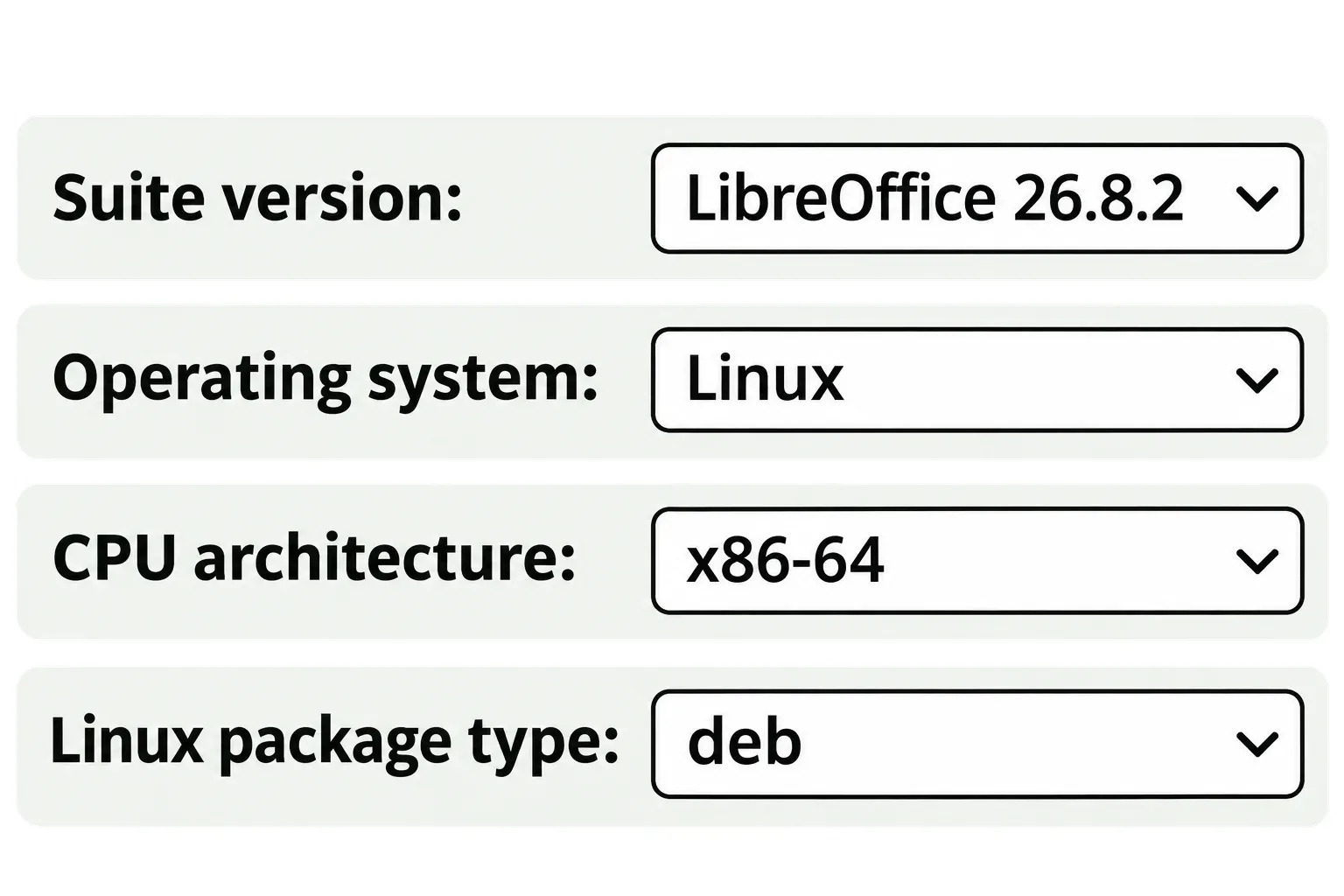
The official download selector lets you choose the suite version, Linux, CPU architecture and DEB or RPM package type. Linux archive names use x86-64 or aarch64; the selector calls the latter ARM64. Match both the architecture and packaging family to the machine.
Check the selected build's requirements before downloading. The current TDF GNU/Linux requirements list kernel 4.18 or newer and glibc 2.27 or newer. TDF's x86-64 builds also require an x86-64-v2-level CPU. A computer running a 64-bit distro does not, by itself, establish that CPU requirement. Distro builds can have different conditions.
Choose a maintained release that suits the work you do. Avoid selecting an obsolete archive solely because an old tutorial uses its filename.
- Prepare the source change. Preserve documents and backups, close LibreOffice, and remove the identified old route as described below if you are replacing it.
- Download and extract the main archive. Open the extracted directory whose name begins with LibreOffice and includes the version and platform. Do not run an installer wildcard from your general Downloads folder.
- Open a terminal in the package subdirectory. The official installation readme specifies DEBS for Debian-based systems and RPMS for RPM systems. Check the directory and its package files before the next command.
- Install the selected set. Use the appropriate command below and inspect any reported dependency problem. A failed package transaction is a reason to stop and consult your distro's package-management help; do not force the installation or add another package source over it.
- Add optional components afterward. Install the corresponding language and offline-help packages after the main program. Keep their release, architecture and packaging family aligned with the main download.
Debian or Ubuntu, inside DEBS: the TDF readme documents sudo dpkg -i *.deb. Unlike APT, dpkg does not automatically download required dependencies. Choose the distro route instead if you need its simpler dependency-managed installation; resolve any package failure before proceeding with a source change.
Fedora, inside RPMS: the TDF readme gives sudo dnf install *.rpm. This installs the local archive's packages, a different source from asking Fedora to install its repository package by name.
openSUSE with Zypper, inside RPMS: use sudo zypper install ./*.rpm. Zypper accepts local RPM paths, so this command selects the package files in that directory. Review the transaction rather than bypassing dependency checks.
For a language or offline-help pack, close LibreOffice, extract the matching optional archive, and enter its own DEBS or RPMS directory before using the appropriate installation route.
All three commands assume the extracted package directory contains only the intended package set. The DEB/RPM archive route is not an installation recipe for Arch Linux or an immutable desktop image.
Flatpak and Snap have identifiable package sources
LibreOffice's alternative-download page links its Flatpak builds on Flathub. The Flathub listing identifies the app as by The Document Foundation, with the ID org.libreoffice.LibreOffice. Check that source if a software center offers several LibreOffice entries; a similarly named app from another remote is a different package source.
With Flatpak installed and the Flathub remote configured, flatpak install flathub org.libreoffice.LibreOffice uses the remote-and-app-ID syntax in the Flatpak installation guide. Keep the same system-wide or per-user scope when managing it later. Launch that copy explicitly with flatpak run org.libreoffice.LibreOffice.
The Snap Store identifies Canonical as the verified publisher. With snapd available, install the LibreOffice snap with sudo snap install libreoffice. Inspect the listing and channel before installing: a channel called latest/stable need not match the newest TDF download.
Choose a universal package for a deliberate reason, such as the application route recommended by your desktop edition. Do not assume that a higher version number settles integration, access to your files or optional-component requirements. Keep the chosen store and package ID in your installation notes.
Remove the identified old route before replacing it
Separate installations can sometimes coexist, as the TDF installation readme explains. For a normal working desktop, I recommend keeping one primary installation source so launchers and updates remain understandable. Removing a launcher alone does not remove its installed packages.
Save documents, close LibreOffice and make a separate backup before removal. Preserve any templates, macros or other personal material you need. Then use the manager that owns the installation you identified:
- Debian or Ubuntu native packages: select the installed LibreOffice components in your package manager, or use APT's
removeoperation with their exact names. Select the actual suite components as well as its metapackage. Review the component list; the APT manual warns that automatic dependency removal can include applications you want to keep. - Fedora native packages: use DNF5's
removeoperation with the actual installed package names. The DNF5 removal guide describes dependency-removal behavior, so inspect the whole transaction. - Arch packages: use
sudo pacman -Rfollowed by the installed branch and any matching packages you are replacing. The pacman removal operation accepts explicit package names. Keep normal dependency checks enabled. - openSUSE native packages: use
sudo zypper removefollowed by the exact installed suite package names. The Zypper removal procedure presents the transaction for confirmation. - Flathub: use
flatpak uninstall org.libreoffice.LibreOfficein the installation's original scope. The Flatpak removal command targets an application ID; retain personal-data backups. - Snap: use
sudo snap remove libreoffice. Canonical documents that Snap removal also removes the snap's internal data and configuration. Back up needed material first; do not add--purgeto this migration step.
Packages from a downloaded TDF archive are also registered with the native package system. Identify their actual names there rather than treating them as a distro metapackage or deleting an installation directory by hand. Avoid broad purge patterns and forced dependency overrides.
Inspect the installed list again. Once the intended old package set is removed and the package manager reports a consistent state, install the new route. If a transaction proposes unrelated removals or fails, stop and resolve it before changing sources again.
Confirm the copy that opens and who updates it
Launch the chosen copy, revisit Help > About LibreOffice and compare its version with the package you installed. For Snap, LibreOffice documents the explicit launcher /snap/bin/libreoffice and warns that omitting the full path may start a distro copy instead. For Flatpak, use its app-ID launch command above.
Open a copy of a representative document, confirm that its required fonts and features are available, and check where you can save it. Keep your preserved files until this chosen installation is ready for your work.
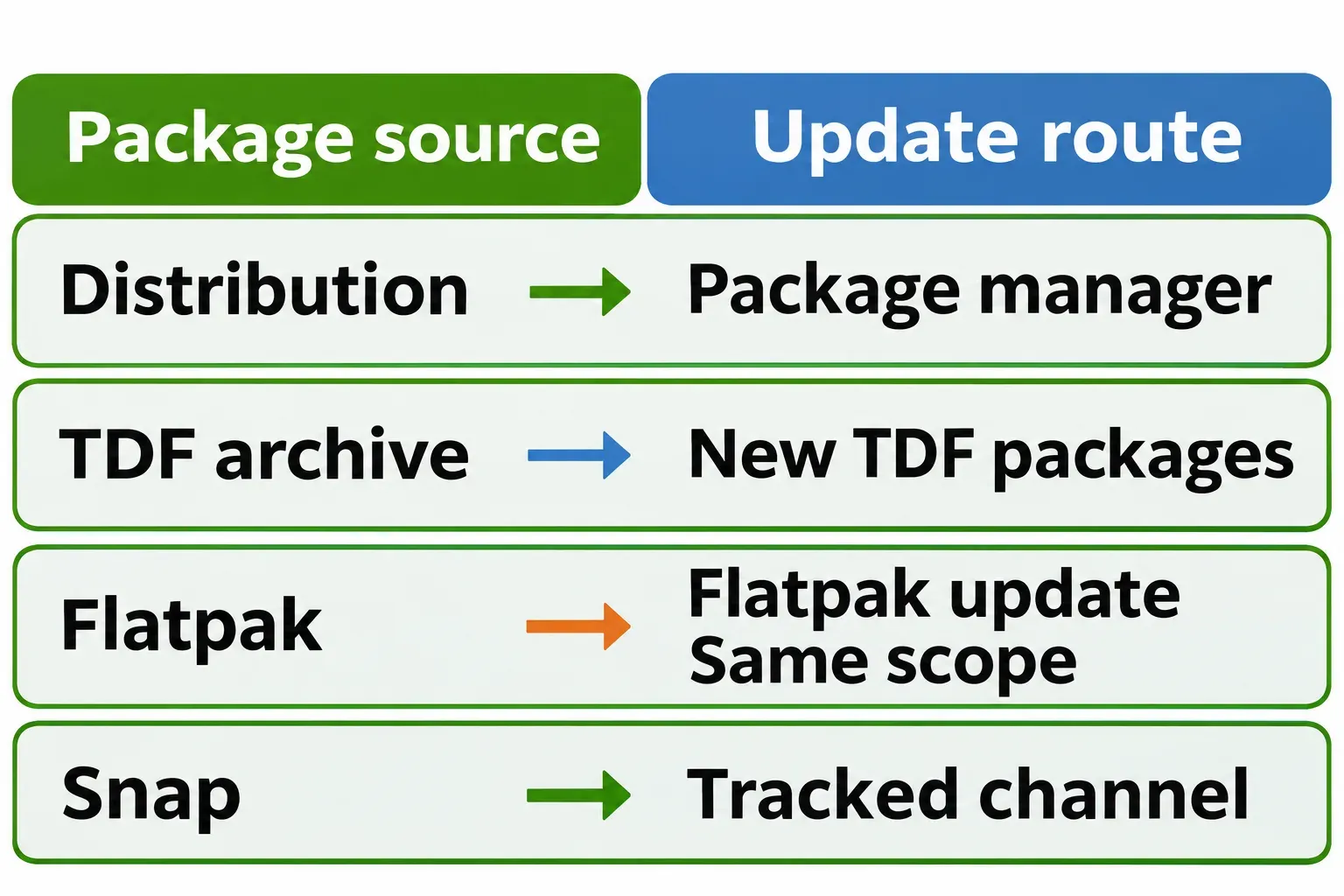
Record the update route: distro packages through the distro manager, the TDF archive through a deliberate upstream-package update, Flatpak through its software manager or Flatpak update command, and Snap through its tracked channel's normal automatic updates. The Snap guide describes automatic channel updates and update holds, which can alter that behavior.