How to edit a PDF in LibreOffice Draw, and where it falls short
Use Draw for a small PDF correction, keep an ODG working copy and export a checked return copy. Know when scans, forms, signatures or layout changes call for another route.
To edit a PDF in LibreOffice, open it in Draw with File > Open, change the text or image, then export a new PDF. I'd choose Draw for a typo or a date when the imported pages still look right. Imported text can arrive as separate text boxes, so a paragraph rewrite is better done in the editable source.
Keep the original PDF, work on a copy and export a new file. If you have the editable source and need to rewrite a paragraph or move a table, change that source instead. Rebuilding a document one imported object at a time is a poor trade for a free editor.
Decide what needs changing before opening Draw
A single date in an otherwise correct letter is a reasonable candidate. A scanned contract, a form with working fields or an already signed document needs a different decision.
- A small visible correction: try Draw, then inspect the import before doing any work.
- A substantial rewrite: request the editable document. If it is a Word file, start with the guidance on opening Microsoft Office files.
- Text that is part of a page image: use a document-recognition workflow or obtain the source. Opening an image is not the same as making its letters editable.
- Fields or a digital signature that must remain valid: preserve the original and use the agreed form or signing workflow.
Do not cover confidential text with a rectangle and call it removed. LibreOffice's redaction instructions distinguish the final redacted export from a preview. The ordinary drawing edits below are for corrections, not secure removal of hidden information.
Open a copy and inspect what survived
These steps use English desktop menus. Windows, Linux and macOS file pickers can look different. Draw's documented input formats include PDF.
- Make a separate copy of the PDF in your file manager, leaving the received original untouched.
- In LibreOffice, choose File > Open, select the copy and click Open. For an ordinary PDF, the editing route is Draw.
- Before changing anything, compare its pages with the original in your usual PDF viewer. Look at line endings, tables, symbols, images and page edges. Inspect pages beyond the first one.
If the import already has missing characters, overlapping lines or misplaced graphics, stop and seek the source file or a PDF tool suited to that document. Exporting the damaged import will not restore what was lost.
Fonts deserve particular attention. LibreOffice's font-substitution settings account for unavailable document fonts. A replacement can change how a line fits. A familiar font name in a box is less useful than comparing the actual page with the original.
Double-click the text, rather than moving its box
There are two different actions here. Selection handles around a box let you move or resize an object. To change its letters, double-click inside the existing text and look for the text cursor.
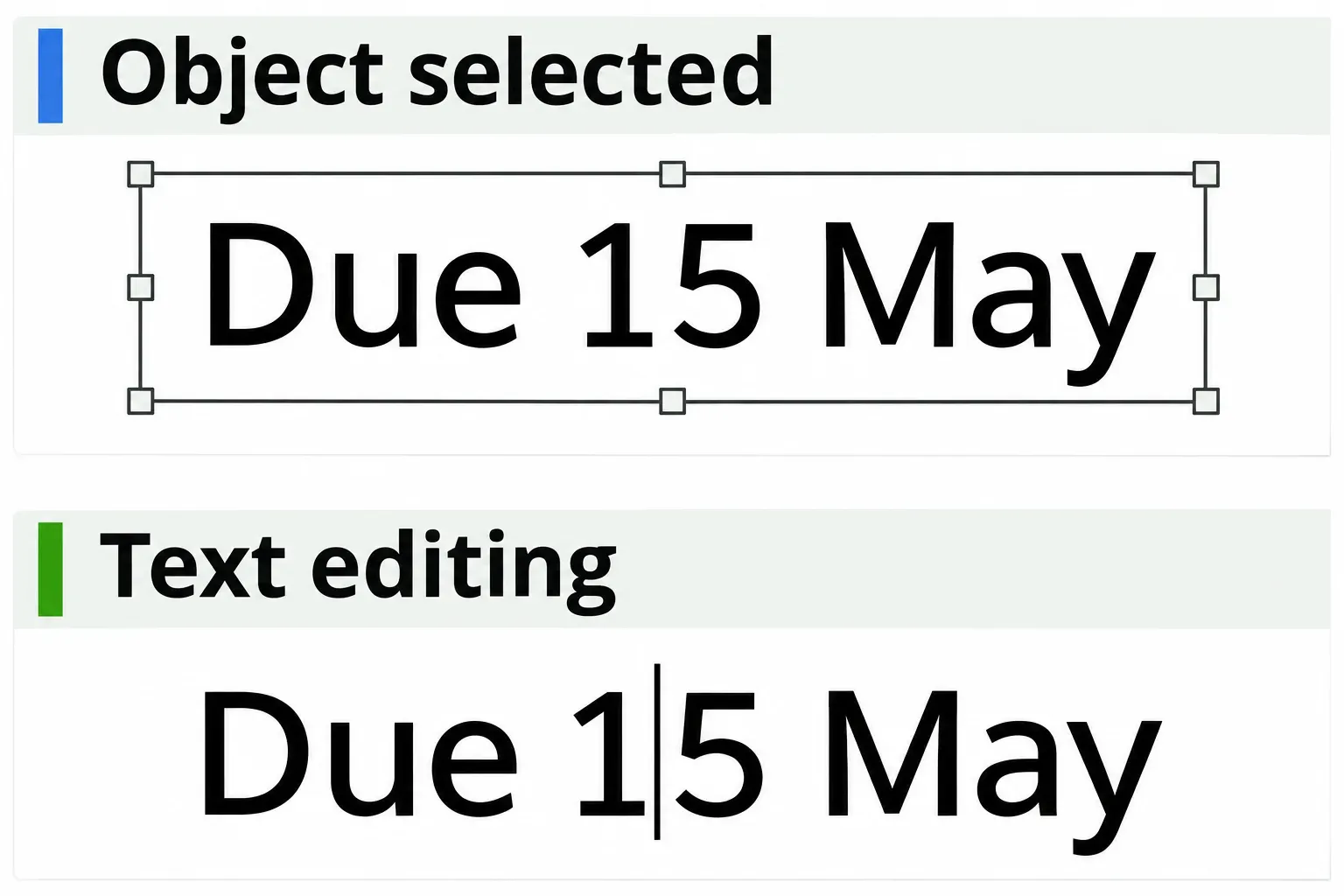
- On the required page, double-click the text containing the mistake.
- Select just the characters to replace and type the correction. Keep the change small enough to fit the existing space.
- Press Esc to leave the current editing mode, then inspect the line and the objects beside it.
For example, changing a short date may fit its existing box. Replacing a two-line address with five lines needs more room and may collide with the material below. Do not expect neighboring text boxes to behave like the following paragraphs in Writer.
If the next line is a separate object, clicking into the first line will not necessarily let you edit both together. For a longer rewrite, return to the editable master. If a local change goes wrong, use Ctrl+Z on Windows or Linux, or Command+Z on macOS, to undo it.
Replace an image only when it is a separate object
Click the old image once and check what the selection handles surround. If they surround the entire page, do not remove it: the logo you want may be part of a scanned page image. An imported logo can also consist of several objects. The following route is for one independently selectable image.
- Leave text editing with Esc, then select the old image. Check its position and size before removing it.
- Cut the selected object with Ctrl+X on Windows or Linux, or Command+X on macOS. These are the documented cut and undo shortcuts. If the wrong content disappears, undo immediately.
- Choose Insert > Image, select the replacement file and click Open. Leave Insert as Link unselected so the image is embedded in the working document.
- With the new image selected, drag it into place. Drag a corner handle to resize it; hold Shift to keep its proportions, as described in the Draw object-positioning instructions. Release the handle when it fits.
Compare the result with the original page. Look for stretched proportions, an unwanted background and accidental overlap with nearby text. Placing a new logo on top of the old one leaves the old object in the document; replacing the selected object avoids that particular problem.
Keep an ODG working copy, then export the whole PDF
Save the editable Draw document separately. Choose File > Save As, give it a working filename, choose Draw's .odg format and click Save. This is the imported document with your changes, not a recovery of the source file that originally produced the PDF.
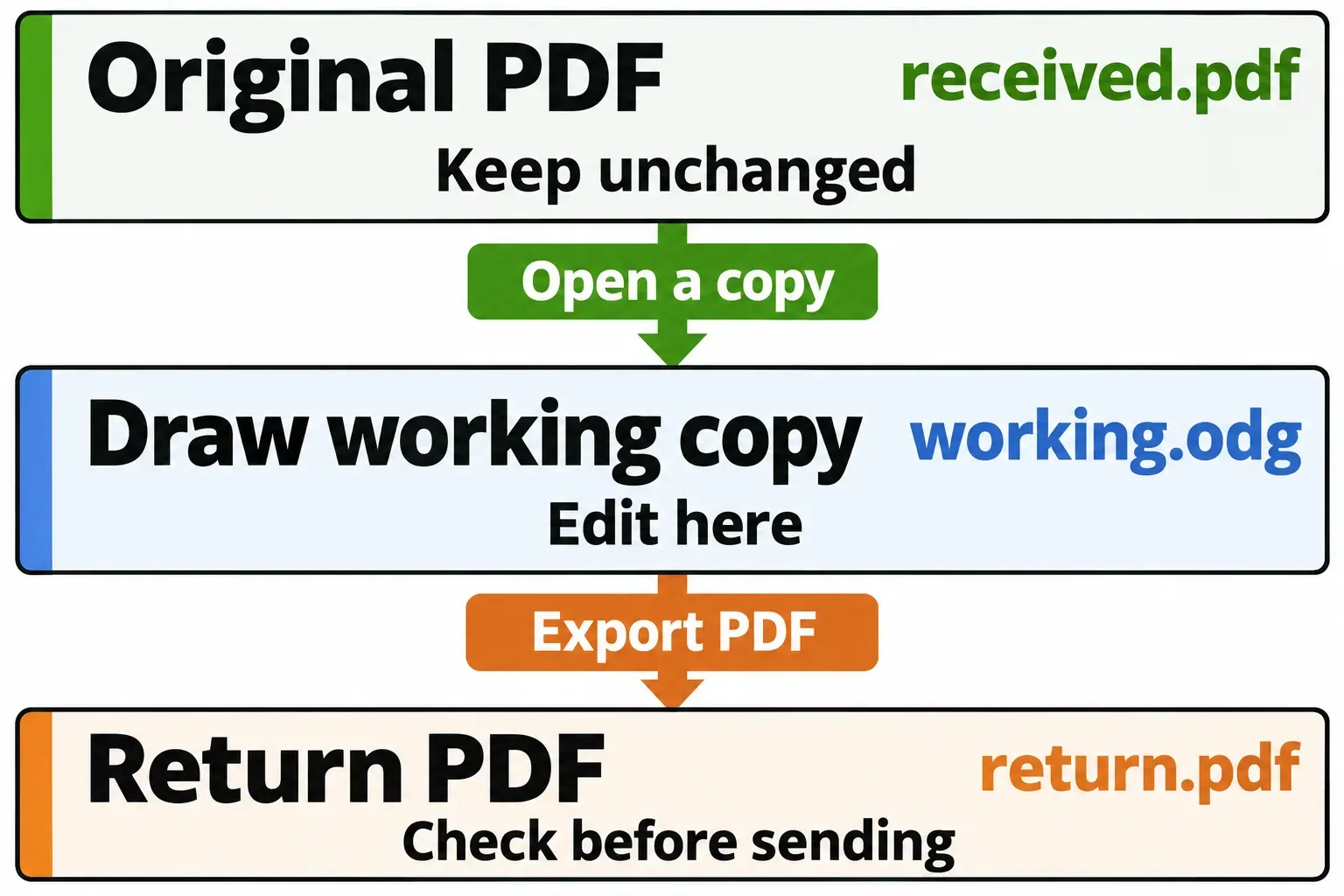
Now create the copy the recipient will read:
- Choose File > Export As > Export as PDF. Use this route so you can inspect the options.
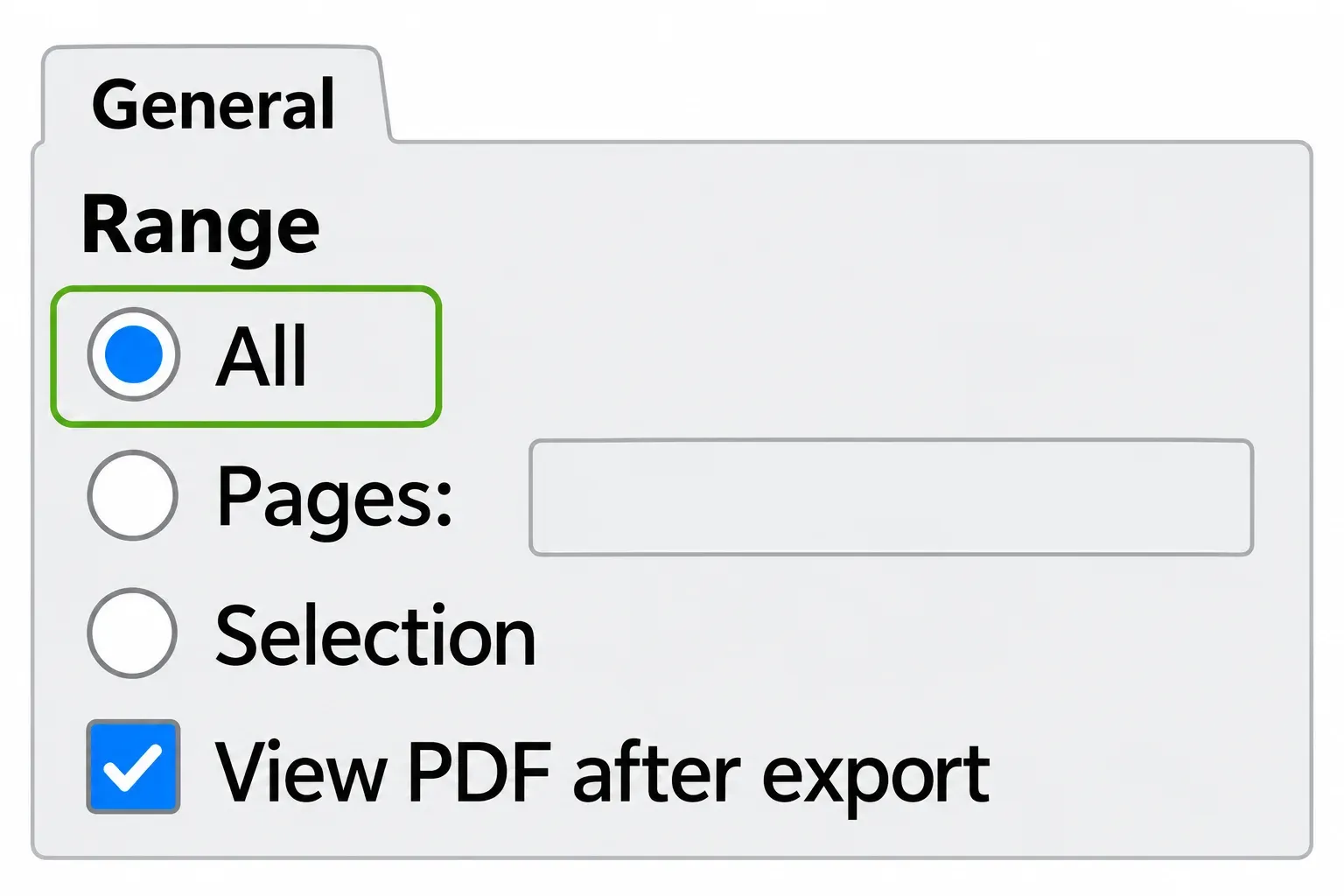
- On General, select All to include the complete document. The range options also include Pages and Selection; check that you have not left an unintended subset selected.
- Select View PDF after export if you want the default viewer to open the result.
- Click Export. In the file picker, choose a location and a new PDF filename, then click Save. Keep the original's filename out of this step.
In the exported PDF, check the page count, the corrected text and every page's layout. Look at unedited pages too: importing and exporting involved the whole document. Check links and any required interactive behavior in the viewer the recipient uses. If the result fails that check, retain the original and change the workflow.
Use Hybrid PDF only when you want to send editable content too
In the same General options, Hybrid PDF (embed ODF file) combines a viewable PDF with an embedded ODF document. A normal PDF viewer displays the PDF; LibreOffice can open the editable content.
This can be useful when one file must serve as both a reading copy and an editable handoff. For an imported PDF, the embedded working document is the Draw version you have now. It cannot bring back lost layout or the original word-processing structure. Leave the option off if the recipient should receive only the PDF, without its embedded editable content.
When to stop trying to fix the page in Draw
Scanned text: if there is only an image, double-clicking its printed letters does not create a text cursor. You need recognition or a source document. The OCR documentation explains how recognition turns text images into computer text; that recognized text still needs proofreading. A searchable text layer is not a promise of a neatly editable paragraph.
Working forms: if the recipient must fill fields, submit a form or retain calculations, use a tool and process intended for those functions. LibreOffice documents a Create PDF form export option, but that does not establish that an arbitrary imported form will survive unchanged. A page that looks right is insufficient evidence that its fields still work.
Signed or restricted documents: ask the sender for permission and an unsigned editable copy. LibreOffice's signature guidance explains that content changes break a digital signature. It also documents signing PDF exports, which is a different operation from preserving someone else's existing signature. Arrange the required signature on the approved final document.
Draw remains useful when the page is mostly right and the correction stays local. Retain the original, the ODG working file and the checked PDF as distinct files so the next correction has a clear starting point.