LibreOffice templates: where to find them and how to add your own
Choose the right file, bring it into Template Manager, and keep the reusable layout separate from the document you send. Includes Writer defaults and Word .dotx limits.
Find ready-made LibreOffice layouts in the official extensions and templates catalogue, or open File > New > Templates in Writer for your installed choices. Use the Text Documents filter, choose a category and double-click a template to create a new document. To add a template you downloaded, use Manage > Import in that dialog. To reuse your own layout, open the document and choose File > Templates > Save as Template.
A template is a reusable starting point: it can hold styles, text, graphics and tables for new documents. Keep that starting file separate from each finished document you will send. Choosing a default template is optional; you can use a layout once without making every new document start from it.
Start in the Templates dialog
With Writer open, choose File > New > Templates, or File > Templates > Manage Templates. They open the same manager. The shortcut is Ctrl+Shift+N on Windows/Linux or Command+Shift+N on macOS, as described in the template-management instructions.
Set Filter to Text Documents so presentation and spreadsheet layouts do not crowd the choice. Then use Categories: All Categories gives the broad view; My Templates is useful for your additions. The documented categories also include Business Correspondence, Other Business Documents and Personal Correspondence and Documents. You can search by name rather than opening every category.

LibreOffice includes built-in templates, but choose from what your installation shows. When you find a suitable one, double-click it, or select it and use New From Template. The Template Manager creates a new document with that template's content and formatting. Replace the sample content and save the new document under its own name.
Do not choose Edit when your aim is to write today's letter. That command concerns the template itself. Choose presentation templates separately from a Writer letter or report.
Choose a file that belongs to the right app
Check the file type before trying to import a download. The native OpenDocument formats distinguish a template from a regular document:
- Writer:
.ottis a text-document template;.odtis a text document. - Calc:
.otsis a spreadsheet template;.odsis a spreadsheet. - Impress:
.otpis a presentation template;.odpis a presentation.
If the download is an ordinary .odt file, open it as a document, arrange it as needed and use Save as Template if you want it in the manager. Changing the suffix is not the conversion step. An .oxt file is a LibreOffice extension; the standalone-template import procedure below is for the template file itself.
Can Writer open a Word .dotx template?
Yes. Writer's documented Word template filters include .dotx. Use File > Open to select the Word file. Before adopting its layout, inspect the fonts, page breaks, tables, text boxes and headings. Import support is not a promise that every detail transfers: the Help notes that some attributes of imported template text boxes and labels can be lost.
Once the layout is suitable, save a separate Writer template through File > Templates > Save as Template. Keep the original Word file if someone still needs that version.
Import a downloaded template
First save the appropriate template file to a folder you can find again. Check its publisher and license before using it for a real document. For a standalone Writer template, look for .ott; you do not need an unrelated application installer to follow these steps.
- In Writer, open File > Templates > Manage Templates. On macOS the File-menu route is the same; the shortcut alternative is Command+Shift+N rather than Ctrl+Shift+N. Set the category filter to All Categories.
- Choose Manage at the top right, then Import.
- In Select Category, choose a destination such as My Templates and confirm with OK.
- Select the downloaded template in the file browser and choose Open. The documented import order is category first, then file.
- Find it in the category you chose, using the Text Documents filter for a Writer template. Double-click it to create a document, then inspect the layout before filling it with your own material.
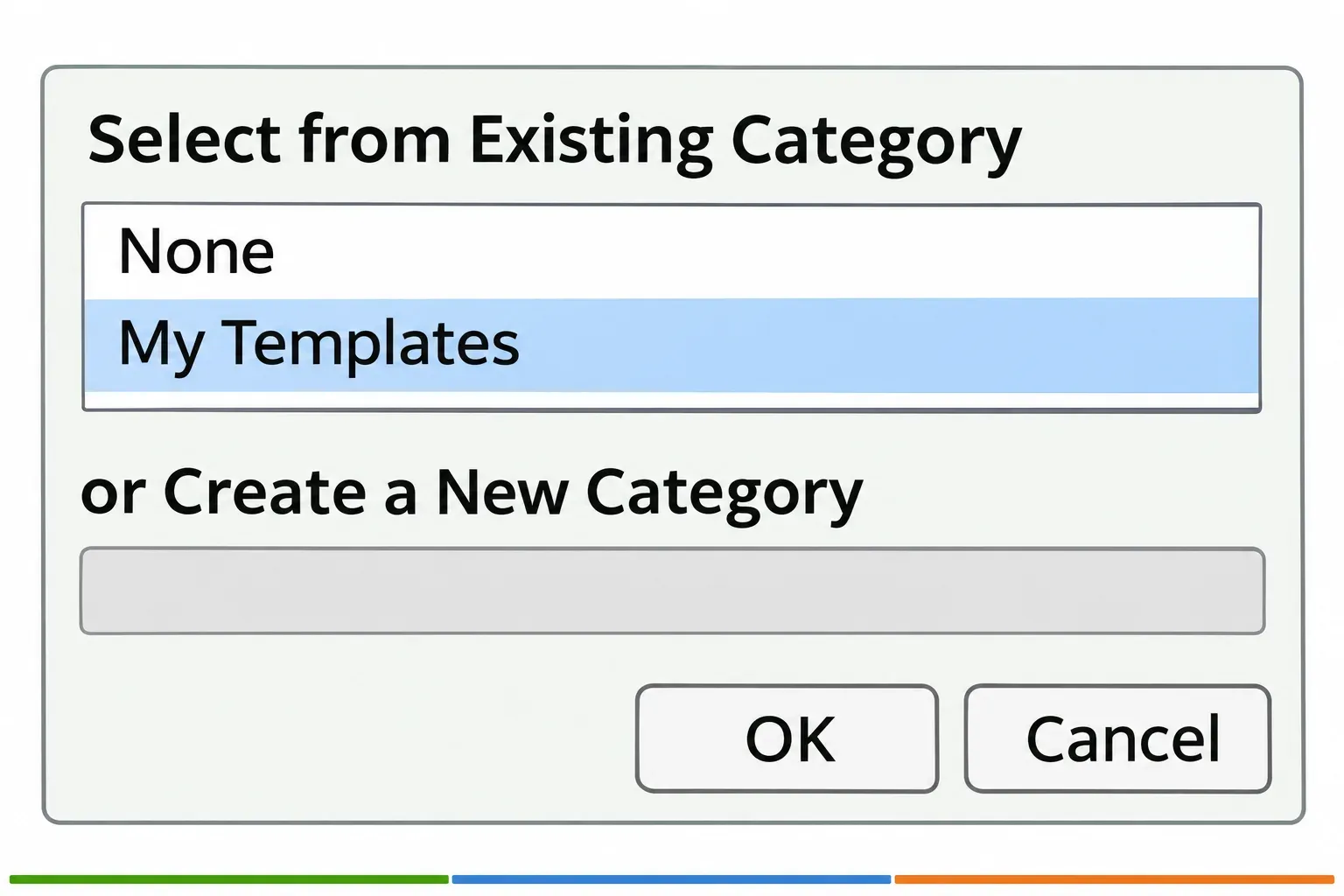
If you cannot see it, check both the application filter and category before importing it again. A Calc template will not appear among text-document templates. An ordinary document download needs the open-and-save-as-template route described above.
Make a reusable template from your own document
Open a new or existing Writer document. Keep only the contents that should appear in every document made from it. Replace one-off names, addresses and report details with clear prompts before saving the reusable version.
Set the page layout and use paragraph styles for the body and headings. Styles are part of the template, so this is the useful point to settle them. For a report, plan a table of contents built from heading styles; for a letter, settle the page margins before reusing the layout.
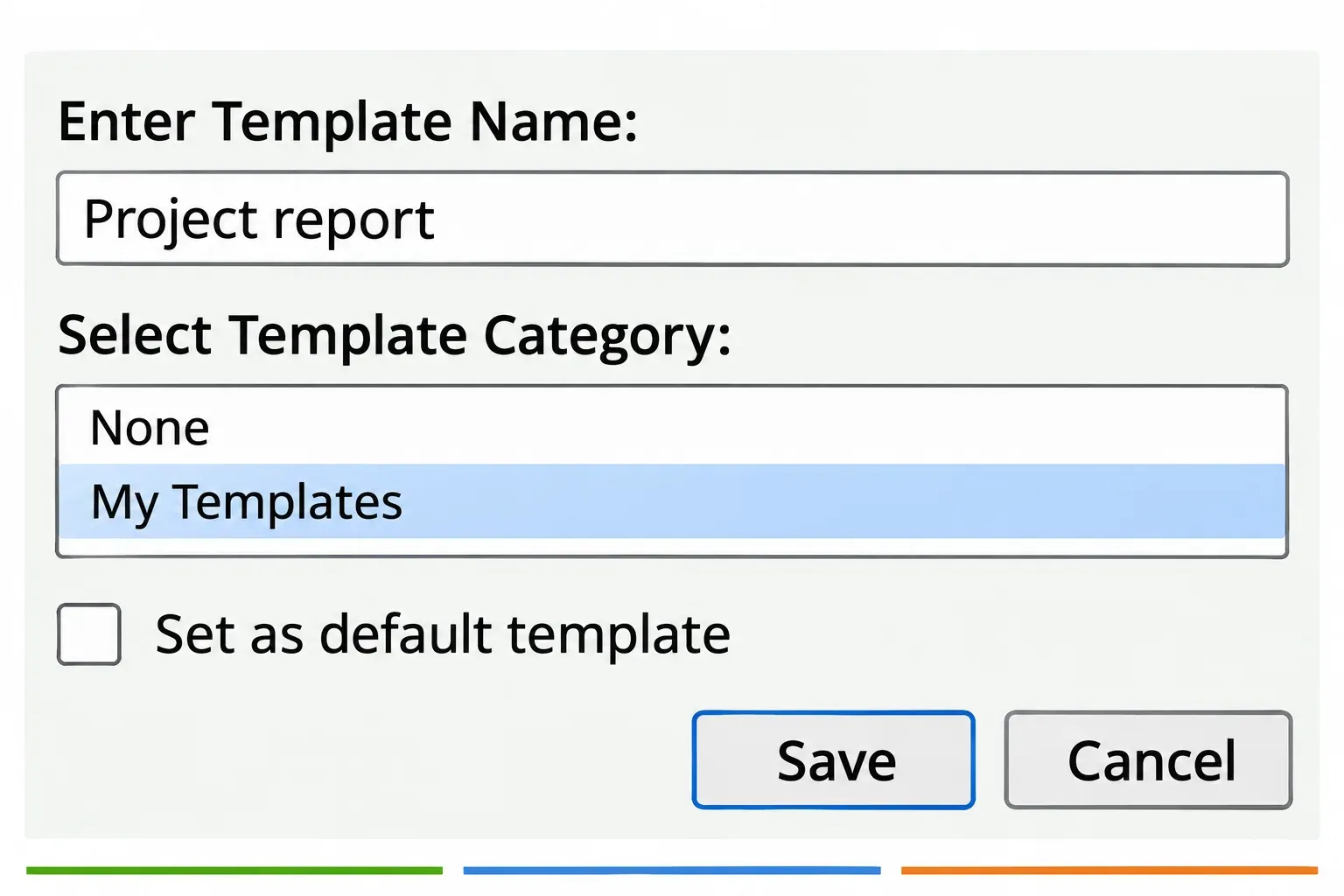
- Choose File > Templates > Save as Template.
- Enter a name that identifies its purpose, such as Project report, and choose a category such as My Templates.
- Leave Set as default template clear if this is only one of several layouts you use. Choose Save. These are the documented custom-template saving steps.
- Open the manager again and create a new document from the saved template. Check that its styles, repeated content and page layout are the starting point you intended.
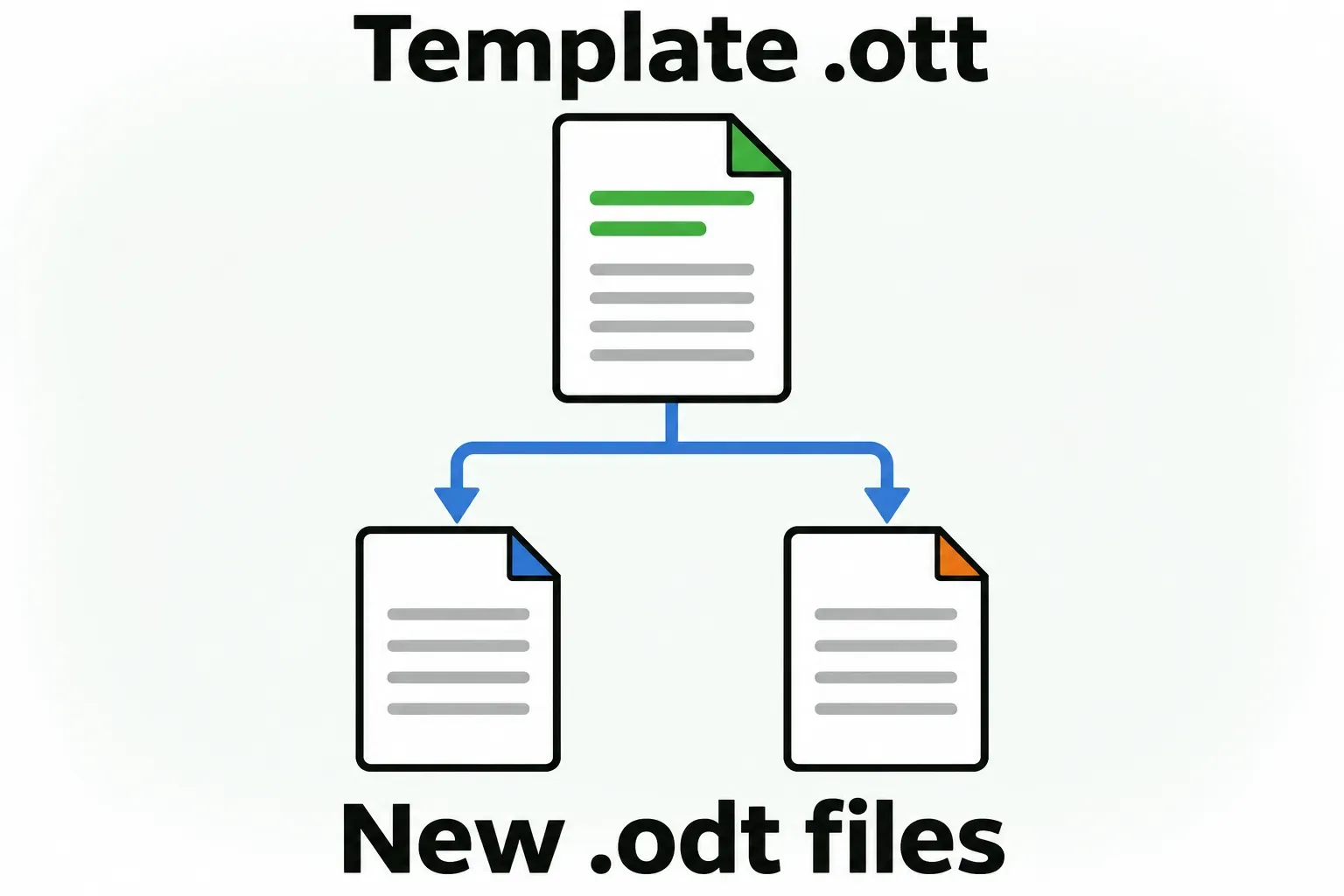
For a built-in template you want to adapt, create a document from it, make your changes and save a new template. The Help directs you to create your own version rather than overwrite a built-in Writer template.
Where LibreOffice keeps your templates
Use the manager for everyday access. If you need the folder location, open Tools > Options > LibreOffice > Paths on Windows/Linux, or LibreOffice > Preferences > LibreOffice > Paths on macOS, and inspect Templates. Do not assume another computer's hidden-folder path applies to yours.
Save as Template is the easier route because it places the template in the appropriate directory automatically. If you save a template elsewhere using a normal Save dialog, import it or add that folder to the template paths before expecting it in the manager.
Choose the default for new Writer documents
Set a default when you want the same starting styles and layout for routine new documents. Keep an occasional CV or special-purpose form as a template you choose explicitly.
Open File > Templates > Manage Templates, set Filter to Text Documents, then find your template. Right-click it, or Control-click on a Mac if needed, and choose Set as Default. A green tick marks the default for that application.
Create a new Writer text document using File > New > Text Document and check its starting layout. The default governs new documents of the matching type; changing it is not the procedure for replacing the layout of an existing report.
To return to the built-in default, keep Text Documents selected in the manager and choose Manage > Reset Default Text Document. The command is available after you set a custom default. Check the filter first: All Applications would reset defaults across applications. Create another new text document to inspect the restored starting point.
Find more templates without guessing the license
Start with the LibreOffice extensions and templates catalogue, which has Writer and Templates tags. Open the individual entry before downloading. Check the file type, publisher, stated compatibility and license for the release you want; an entry being in the catalogue is not a reason to skip those checks.
Read the permission that applies to that particular template, including any attribution or redistribution conditions. Check separately supplied fonts or images if you intend to keep them. If the terms are missing or unclear for your intended use, choose another layout or make your own. I would also skip a download route that substitutes an unrelated installer for the document file.
For a reusable letter or report, I would choose a modest layout with understandable styles. It is easier to maintain than a decorative page you cannot comfortably edit. Keep the reusable starting point in My Templates, and save each finished document under the name its recipient needs.