LibreOffice macros for beginners, and what happens to Excel VBA
Start with a small Basic macro, choose where its code belongs and understand the separate decisions behind recording, macro trust and importing Excel VBA.
LibreOffice Basic is one of the suite's scripting languages for macros, small programs that automate document tasks. In an empty Writer document or Calc sheet, choose Tools > Macros > Organize Macros > Basic to create a first LibreOffice Basic macro. I recommend starting with a message box because it lets you find, edit and run a small procedure before the next one changes a Calc cell. Excel VBA needs a separate decision: LibreOffice supports part of VBA, so keep the original workbook and check its automation before relying on a return copy.
Choose where the macro belongs
A macro is a short program. LibreOffice documents support for Basic, Python, JavaScript and BeanShell. Basic is a useful starting point here because the recorder and Basic editor give you a route from a document action to editable code.
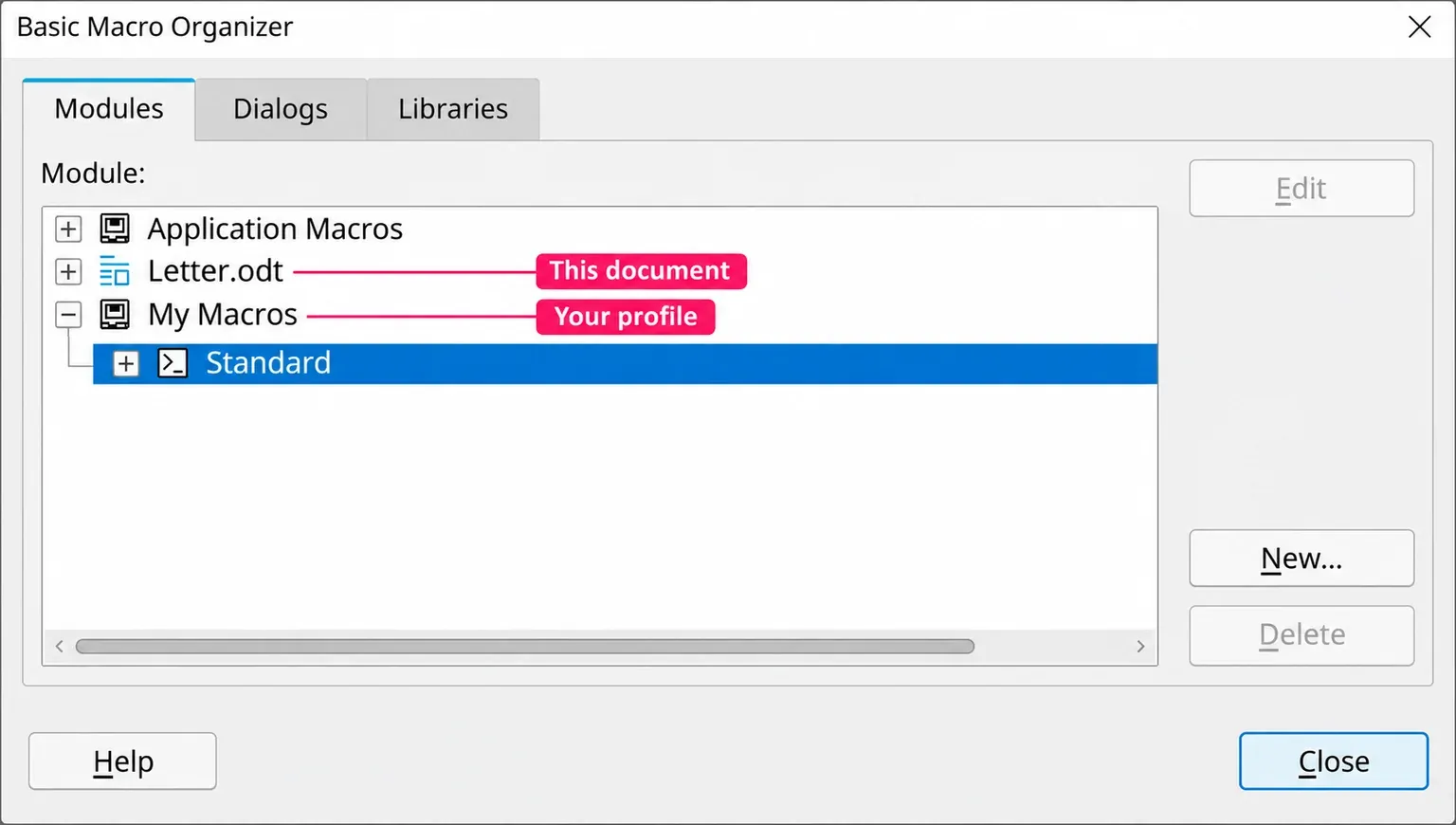
Before creating anything, choose its container, the place holding its libraries. A library groups modules, and a module holds procedures such as the Sub below. The library and module guide distinguishes three storage locations:
- My Macros: stored in your user profile and available across your documents. Use this for a personal command you want to reuse.
- The open document: stored with that document and available while it's open. Choose this when the automation belongs with a particular document rather than your profile.
- Application Macros: stored with the LibreOffice installation, available to its computer users and managed by the administrator. Leave this container out of a first personal example.
I'd put a first reusable macro in My Macros: its location stays clear when you move between documents. For a document macro, open the intended document before opening the macro dialog; otherwise you can't choose that document as its destination.
Write and run a first Basic macro
Use an empty Writer document or Calc sheet while learning. This first procedure only displays a message, so it can't change a document or write a file. It follows the documented MsgBox syntax, with a single text argument.
- Choose Tools > Macros > Organize Macros > Basic. Click Organizer, then open its Modules tab.
- Select the library in My Macros where you want the module. Click New, enter a module name such as
Beginner, and confirm with OK. - Open that module in the Basic editor. In a new, otherwise empty module, replace the initial procedure with the three lines below. Don't replace code you need to keep in an existing module.
Sub HelloOffice
    MsgBox "Hello from LibreOffice Basic"
End Sub
Sub HelloOffice names the procedure, MsgBox displays its text, and End Sub ends the procedure. To edit an existing macro, select it in the Basic Macros dialog and choose Edit.
Return to Tools > Macros > Organize Macros > Basic, expand the chosen container, library and module, select HelloOffice, and click Run. The expected result is a message reading "Hello from LibreOffice Basic". Dismiss it with OK. If security blocks the macro, inspect the trust settings below before changing anything.
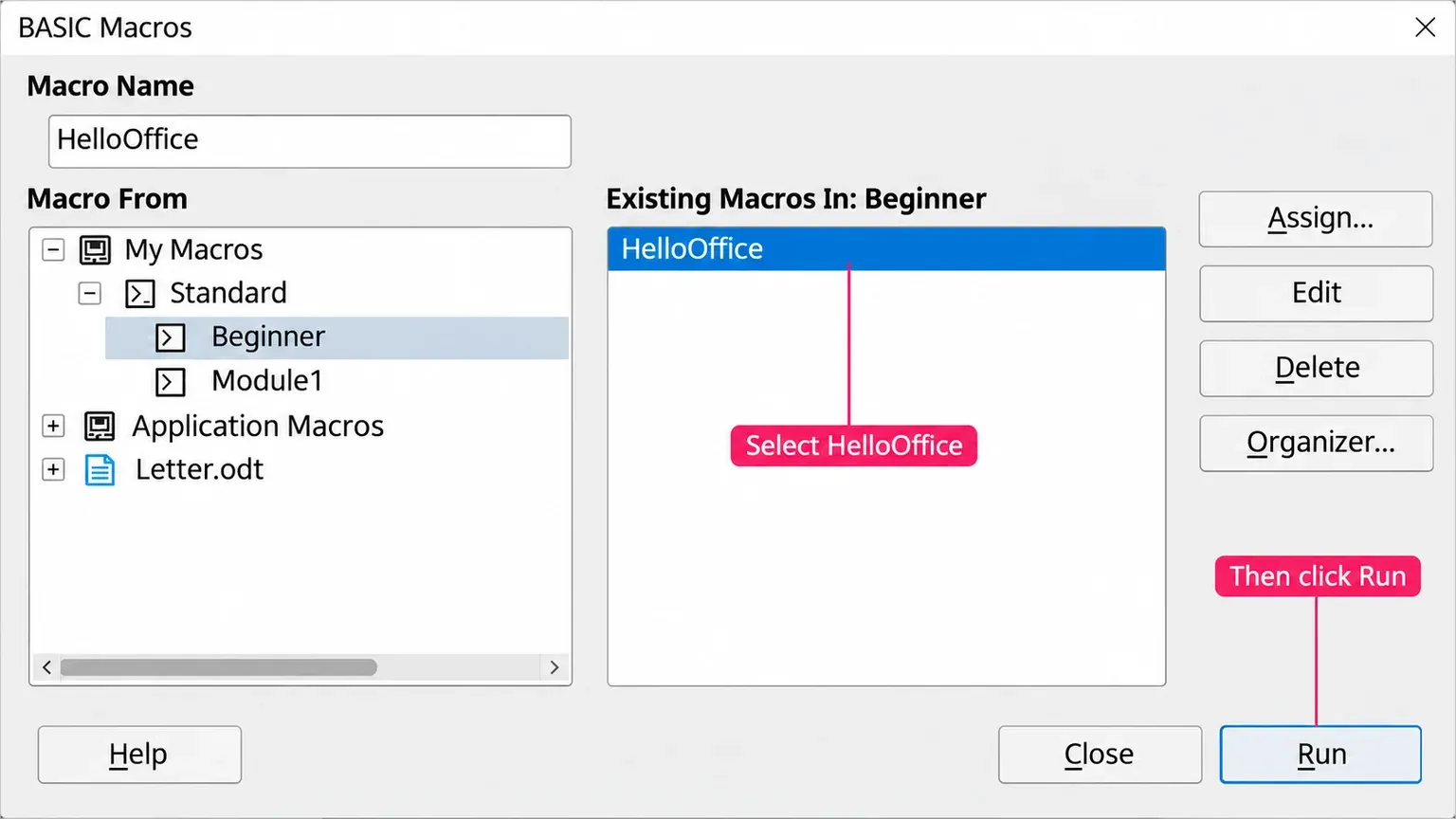
Choosing the named macro avoids an editor detail that can confuse a beginner: the Run BASIC command starts with the first procedure in the editor. Naming a procedure Main doesn't give it special precedence.
Next, make the macro change the sheet. Add this procedure below HelloOffice, open a blank Calc sheet, and run MarkDone from Tools > Macros > Run Macro: A1 should read Done.
Sub MarkDone
    ThisComponent.CurrentController.getActiveSheet().getCellByPosition(0, 0).setString("Done")
End Sub
ThisComponent is the document in the active window, getActiveSheet() returns the sheet you're looking at, and getCellByPosition(0, 0) is column A, row 1, because Calc counts cell positions from zero. setString writes text into that cell. In the Run Macro dialog, expand My Macros in the Library list, select your Beginner module, pick MarkDone under Macro name and click Run. Start it from the Calc window rather than the Basic editor, so the active document is the sheet. When you expand the example, use the Basic programming index to move from these first controls to syntax and the IDE reference.
Record a document action, then inspect the result
The recorder works in Writer and Calc. It can help with a repeatable document action, but it doesn't capture everything you do in the application. Start with a small formatting operation in a disposable document so the sequence is easy to inspect.
- Open the document in Writer or Calc, then choose Tools > Macros > Record Macro.
- If that command is missing, enable macro recording in Tools > Options > LibreOffice > Advanced on Windows or Linux. On macOS, start with LibreOffice > Preferences > LibreOffice > Advanced.
- Perform the small document action. Use the keyboard to make selections you need the recorder to capture.
- Click Stop Recording. In the save dialog, select the destination in Save macro in, enter a macro name that isn't a Basic keyword, and click Save. Use New Library or New Module there if you need a new destination.
The recording instructions and limitations explain the common gaps: mouse selections aren't recorded, while keyboard selections are. Opening or switching windows, actions in another window, and changes to Options, the macro organizer or customization are also outside the recording.
Run the saved macro on another disposable copy and inspect the document change you intended. If part of the sequence is absent, compare it with those limits before trying a longer recording. For a command you want within reach later, the Basic Macros dialog's Assign button opens customization for menus, toolbars or events. Keep automatic document-open events out of a first learning example.
Choose macro trust settings with care
Macros can perform damaging actions, so treat macro warnings on documents you receive as a trust decision, not an obstacle.
Open Tools > Options > LibreOffice > Security > Macro Security on Windows or Linux, or LibreOffice > Preferences > LibreOffice > Security > Macro Security on macOS. The Macro Security dialog separates the security level from trusted certificates and file locations, and a new security level applies only to files you open after the change.
| Level | What to understand before using it |
|---|---|
| Very high | Only macros from trusted file locations may run. A signature doesn't make a document elsewhere eligible. |
| High | Macros from trusted file locations run, and signed macros run when the signer is one of your trusted sources. A valid signature from an unknown signer isn't enough. |
| Medium | Macros from unknown sources require confirmation. That prompt asks you to make a trust decision; it doesn't establish that the code is safe. |
| Low | All macros run without confirmation. Do not select it to make an unfamiliar document work. |
Adding a trusted file location lets every macro in that folder run, so keep Downloads and other folders of unreviewed files off the list. On a managed computer, your administrator's policy can block macros at any level.
Check Excel VBA before depending on it
LibreOffice's VBA support is incomplete. The compatibility statement Option VBASupport 1 enables limited support for VBA statements, functions and objects; it doesn't supply every Excel feature an existing macro might use. Some code needs changes to use LibreOffice's own objects and functions.
If a workbook's automation is essential to a recipient's work, keep Excel available until that exact automation has been checked. A workbook opening in Calc proves that the document opened, not that its calculations, dialogs and macros completed correctly.
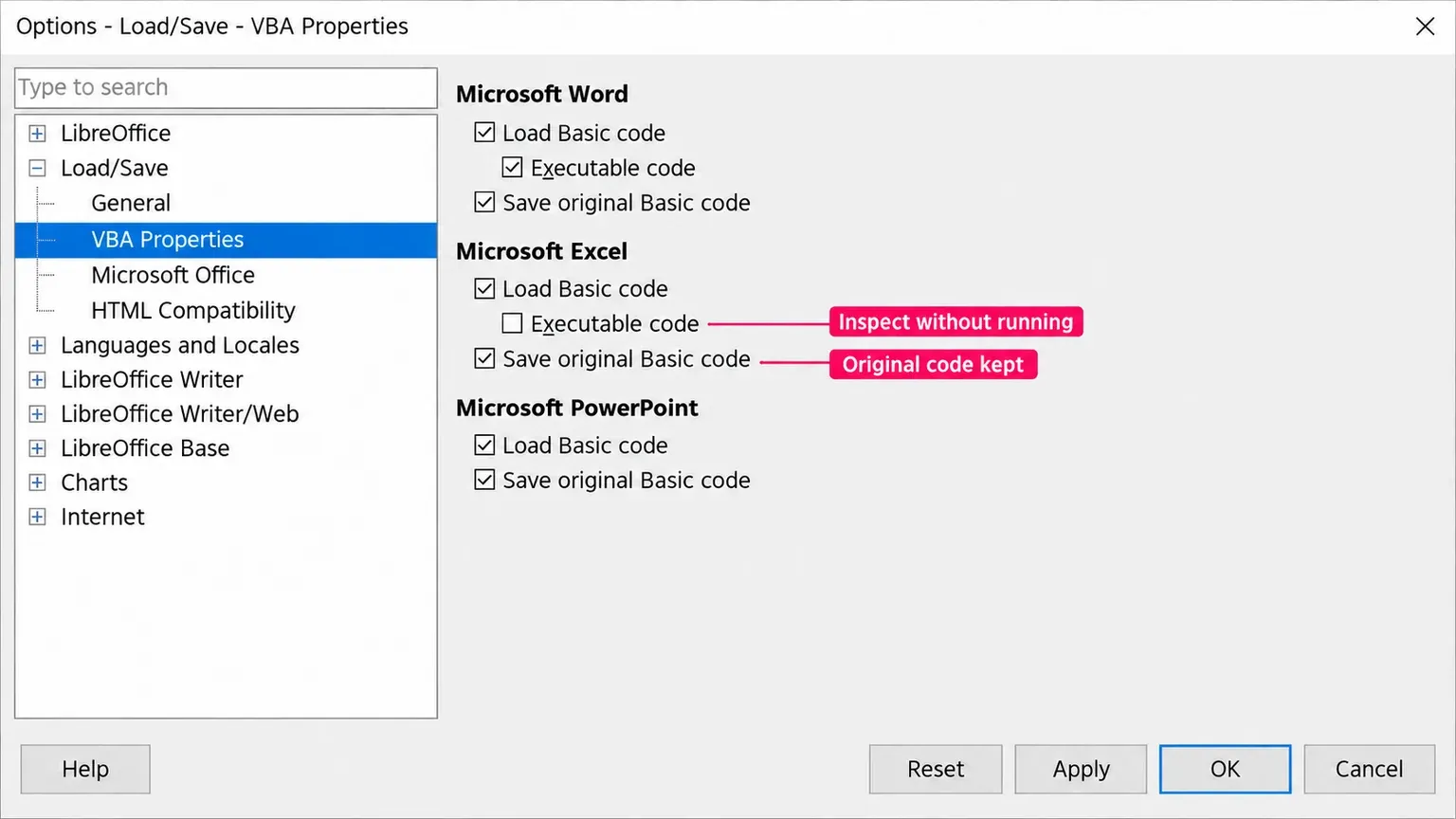
For the VBA controls, open Tools > Options > Load/Save > VBA Properties on Windows or Linux, or LibreOffice > Preferences > Load/Save > VBA Properties on macOS. In the Microsoft Excel section, the VBA Properties documentation distinguishes three jobs:
- Load Basic code imports Microsoft Basic code into a special module for inspection in the LibreOffice Basic editor. That editor copy and the preserved original code are different things.
- Executable code loads VBA ready for execution. When unchecked, the imported VBA is commented out so it can be inspected without running. Execution still depends on support for the code and the applicable macro security.
- Save original Basic code keeps the original Microsoft code in memory while the document is loaded, for saving it unchanged to Microsoft format. It isn't a promise to export your edited LibreOffice module back as working Excel VBA.
When both Load Basic code and Save original Basic code are selected, the latter takes precedence for the original code on a Microsoft-format save: edits to the disabled editor copy don't replace that original payload. Keep the untouched workbook separately, agree the return format with its recipient, and inspect the returned copy in the application that must run it.
For automation you control, build outward from a small procedure like MarkDone and check each document change as you add it. If an Excel workbook's macros run someone's daily work, I'd keep it in Excel and use Calc for reading; rewrite the automation in Basic only when you own it and can check every result.