OpenOffice vs LibreOffice: which one to install today
Choose an office suite around the file you need to send back. Compare current LibreOffice and OpenOffice releases, modern Office formats, Mac builds and a careful move using document copies.
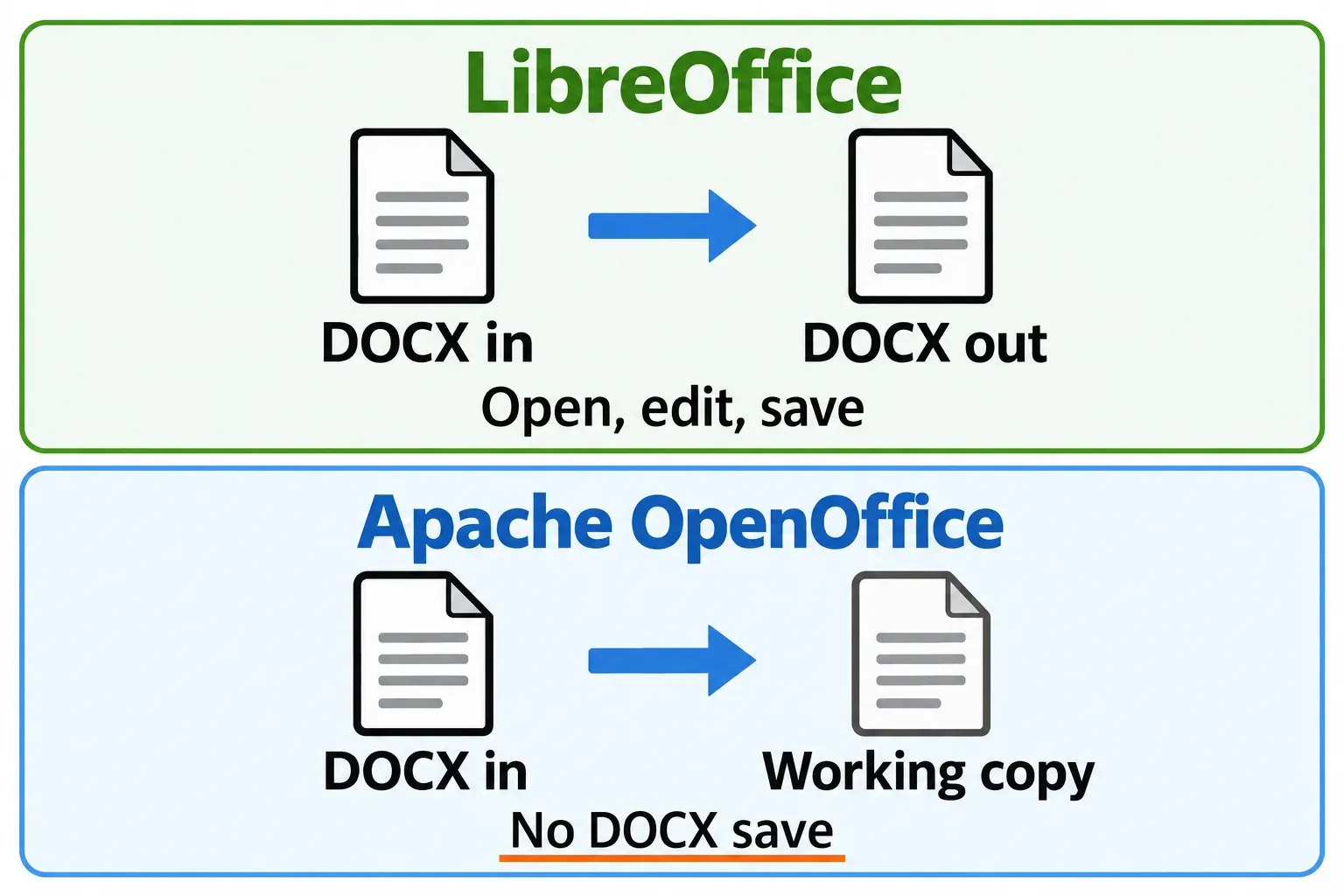
Choose LibreOffice for a new installation, especially if you need to edit a file and return it as DOCX, XLSX or PPTX. LibreOffice can open and save those Microsoft Office formats; Apache OpenOffice can read them but does not export those OOXML formats. That difference can decide the job before interface preferences enter the discussion.
For an established OpenOffice setup, make the decision around the documents and automation you rely on. Familiarity is a reason to plan the move carefully. It is a weaker reason to choose OpenOffice on a new computer with no existing dependency.
The familiar names hide an important difference
The projects share an OpenOffice.org history: LibreOffice forked in 2010, and Oracle contributed the OpenOffice.org trademarks to Apache in 2011. Both use OpenDocument formats, including ODT for text, ODS for spreadsheets and ODP for presentations, so an ordinary document can move between them without first becoming a Microsoft Office file.
Both are free and open source, as the LibreOffice project description and Apache's free-software explanation confirm. Both have Writer, Calc, Impress, Draw, Base and Math. The useful question is which package handles the files you receive, the copies you must send back and the computer you use.
| Document need | LibreOffice | Apache OpenOffice |
|---|---|---|
| Edit and return modern Office files | Can open and save DOCX, XLSX and PPTX return copies. | Can open modern files, but cannot save OOXML return copies. |
| Keep an OpenDocument master | Keeps an editable master in ODT, ODS or ODP. | Keeps an editable master in ODT, ODS or ODP. |
| Use an Apple Silicon Mac | Provides a native Apple Silicon build for compatible Macs. | Uses the Intel build through Rosetta 2 on Apple Silicon Macs. |
| Choose a release branch | Offers the latest and mature previous branches for different update needs. | Offers 4.1.17 as its current maintenance release. |
On an Apple Silicon Mac, I'd choose LibreOffice's native build to avoid relying on Rosetta 2.
Current releases, and the branch I would choose
- LibreOffice 26.8.2, October 29, 2026. The Latest Branch is aimed at technology enthusiasts. The project warns that it may still contain annoying bugs.
- LibreOffice 26.2.7, November 3, 2026. The same release page describes this Previous Branch as the mature version recommended for enterprises.
- Apache OpenOffice 4.1.17, October 14, 2026. Apache's release announcement describes security fixes, bug fixes and enhancements, and advises users of 4.1.16 or earlier to upgrade.
For routine office work where avoiding disruption matters more than getting the newest features, I would start with LibreOffice's mature branch. Choose the latest branch when its additions matter to your work and you accept its documented caveat. An RC entry in the download selector is a release candidate; keep the final-release choice separate from that preview.
OpenOffice's October release matters: advice based only on its much older 4.1 versions misses a current security update. An existing OpenOffice user should deal with that update even if the decision about changing suites takes longer.
Check advisories for the installed version
Both projects publish security information. The LibreOffice security advisories identify affected issues and fixed versions, including the Java-related CVE-2026-63277 addressed in 26.2.5 and 26.8.0. Apache maintains an OpenOffice security bulletin archive; its critical Java advisory affects versions through 4.1.16.
For OpenOffice, follow the released 4.1.17 upgrade recommendation rather than assuming an older copy is adequate because it still opens your documents. For either suite, match an advisory to the installed version and its update source. The number of published advisories alone does not tell you which suite is safer.
The return copy decides file compatibility
Suppose someone sends a DOCX report and expects an edited DOCX back. That is a different requirement from opening the report to read it. OpenOffice's documented Microsoft save formats are the older DOC, XLS and PPT formats. Its ability to open a modern file does not supply the missing modern save format.
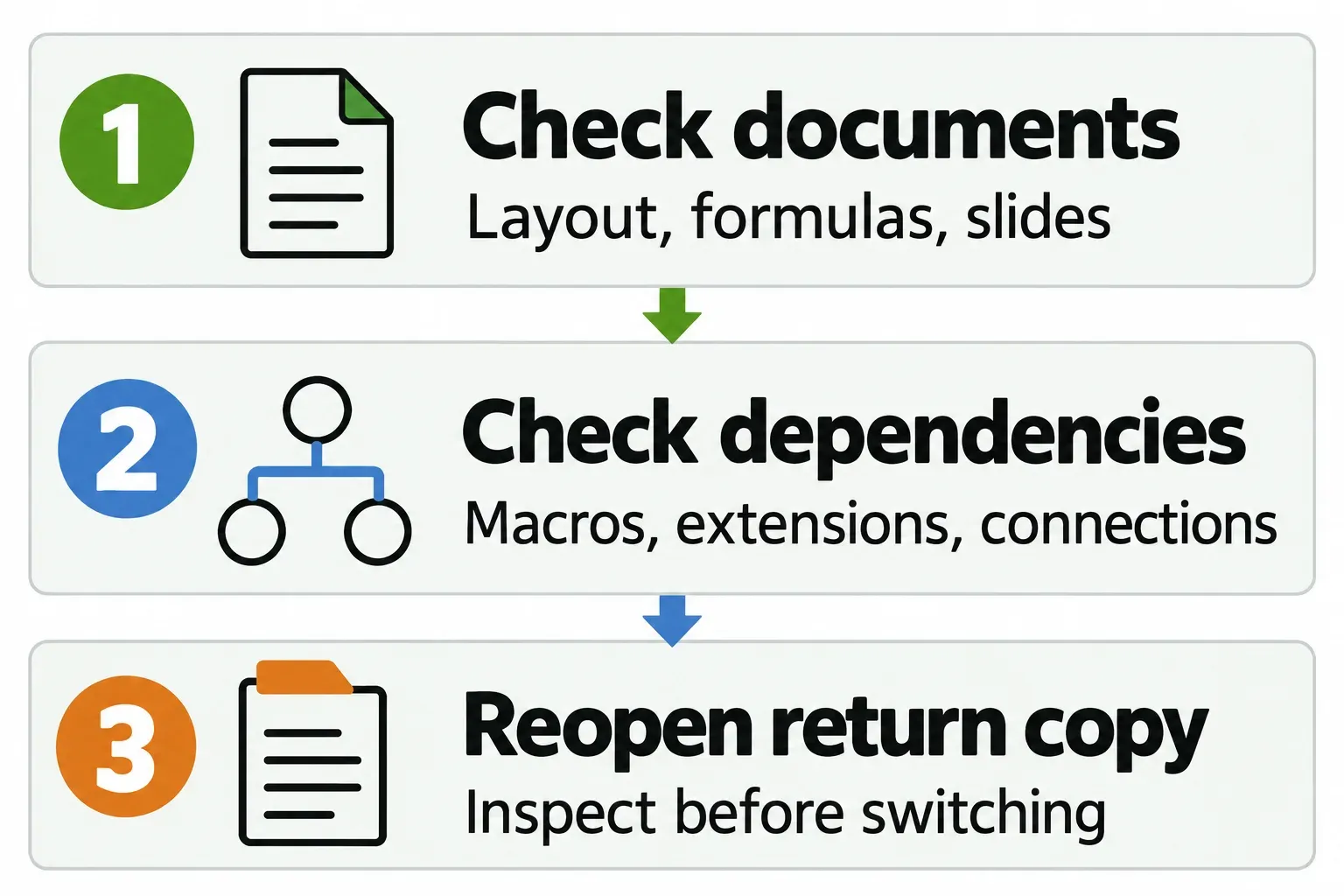
LibreOffice meets the read-and-write requirement, but that does not settle the quality of a particular conversion. Its documented Office conversion limits cover complex page layouts and revision marks. They also include some spreadsheet functions and presentation objects. For a report, inspect page breaks, tables and tracked changes. For a workbook, check the formulas and charts that affect the decision. For slides, inspect spacing and object placement.
Automation needs a separate decision. LibreOffice's Help says that Microsoft Office and LibreOffice generally cannot run the same macro code unchanged, with limited support for some Excel VBA scripts. Do not treat opening a workbook as confirmation that its automation works. An OpenOffice macro, extension or Base workflow also deserves its own compatibility check before you make it a dependency of the move.
If the recipient's Microsoft Office workflow is the constraint, compare LibreOffice against Microsoft Office before committing. OnlyOffice compared with LibreOffice is a separate choice worth examining when editable Office files dominate the work.
Published XLSX round-trip results
In Witan's June 2026 benchmark, LibreOffice 26.2.4.2 on an Apple Silicon Mac opened all 5,426 eligible workbooks from a public collection of Excel forum files. Its combined save, reopen and package-structure check passed 5,280 of them (97.3%). The test excluded 29 files that Excel itself could not process.
This is one published benchmark, with no Apache OpenOffice result. Its structural check examines the files inside the XLSX package; the pass rate does not measure appearance or formula agreement with Excel. I would choose LibreOffice for its XLSX export, then check the saved copy in the recipient's editor before using it for regular exchanges.
Move your documents before changing your habits
You can open an OpenOffice ODT, ODS or ODP document in LibreOffice, and OpenOffice can open those OpenDocument file types from LibreOffice. Treat that as a starting point for checking your files. Keep the originals untouched before saving anything in the other suite. Start with copies of a few representative documents, including the awkward one you cannot afford to damage.
- Open a copy deliberately. In LibreOffice, use File > Open and select the copied document. This avoids making file associations part of the first decision.
- Inspect the parts that matter. Check page layout, formulas, charts and presentation objects as appropriate. List any required macros, extensions or database connections separately; a familiar-looking page does not confirm those dependencies.
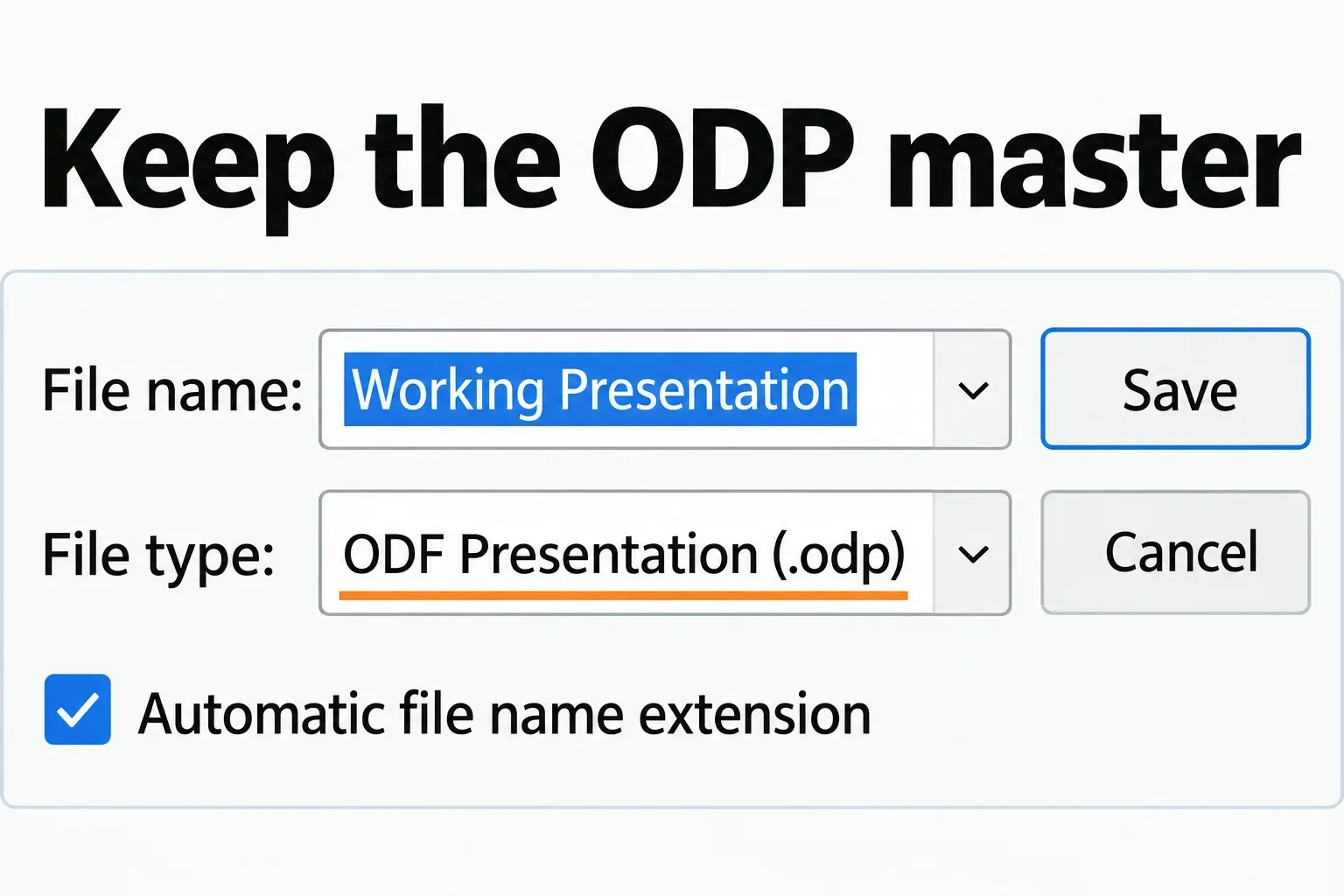
- Save a separately named working file. Use File > Save As and the file-type selector. Keep an ODT, ODS or ODP master when OpenDocument suits the job. If the recipient requires DOCX, XLSX or PPTX, create that return copy explicitly. The operating system's file picker may look different, but the file-type choice is still essential.
- Reopen the saved copy and check the handoff. Confirm its name and format, then inspect the important content again. For an editable return file, ask the recipient to check it in their editor before making this the route for a whole folder of work.
Keep OpenOffice available while an essential dependency remains unresolved. Change defaults and retire the old workflow after the document checks support that decision.